
Your Wi-Fi security key is the secret code that lets your phone, laptop, TV, or game console join your wireless network. It is like the key to your digital front door. If you know it, you can come in. If you do not, you stay outside with the squirrels.
TLDR: A Wi-Fi security key is your wireless password. It protects your network from strangers, hackers, and neighbors who want free internet. You can usually find it on your router, in your device settings, or in your internet provider’s app. A strong key should be long, unique, and hard to guess.
So, What Is a Wi-Fi Security Key?
A Wi-Fi security key is the password used to connect to a wireless network. You may also hear it called a Wi-Fi password, network key, WPA key, or wireless password.
They all mean almost the same thing.
When you pick a Wi-Fi network on your device, your device asks for the key. You type it in. If the key is correct, you connect. If it is wrong, your device gives you that sad little error message. Then you sigh. Then you try again.
The key also helps encrypt your data. That means it scrambles the information moving between your device and your router. This keeps other people from reading it easily.
In plain English: your Wi-Fi security key keeps your internet connection private and safe.
Why Does Your Wi-Fi Need a Security Key?
Imagine your Wi-Fi network is a house party. Without a security key, anyone can walk in. Your neighbor. A stranger in a parked car. Someone with bad intentions. Even that one friend who downloads giant video games at 2 a.m.
A Wi-Fi security key helps you:
- Keep strangers off your network.
- Protect your personal data.
- Stop people from slowing down your internet.
- Prevent illegal activity using your connection.
- Keep smart home devices safer.
This matters more than many people think. Your Wi-Fi connects to phones, laptops, tablets, cameras, speakers, TVs, and smart doorbells. If your network is weak, those devices can become easy targets.
Is a Wi-Fi Security Key the Same as a Password?
Yes. Most of the time, it is.
The phrase Wi-Fi security key sounds serious and technical. But for everyday users, it simply means the password for your Wi-Fi network.
You may see different names depending on your device or router. Here are the common ones:
- Wi-Fi password
- Network security key
- Wireless key
- WPA password
- WPA2 key
- Passphrase
Do not panic if your device uses a strange name. It is still asking for the same thing. It wants the code that unlocks the Wi-Fi.
Where Can You Find Your Wi-Fi Security Key?
Good question. It may be hiding in several places.
1. On Your Router
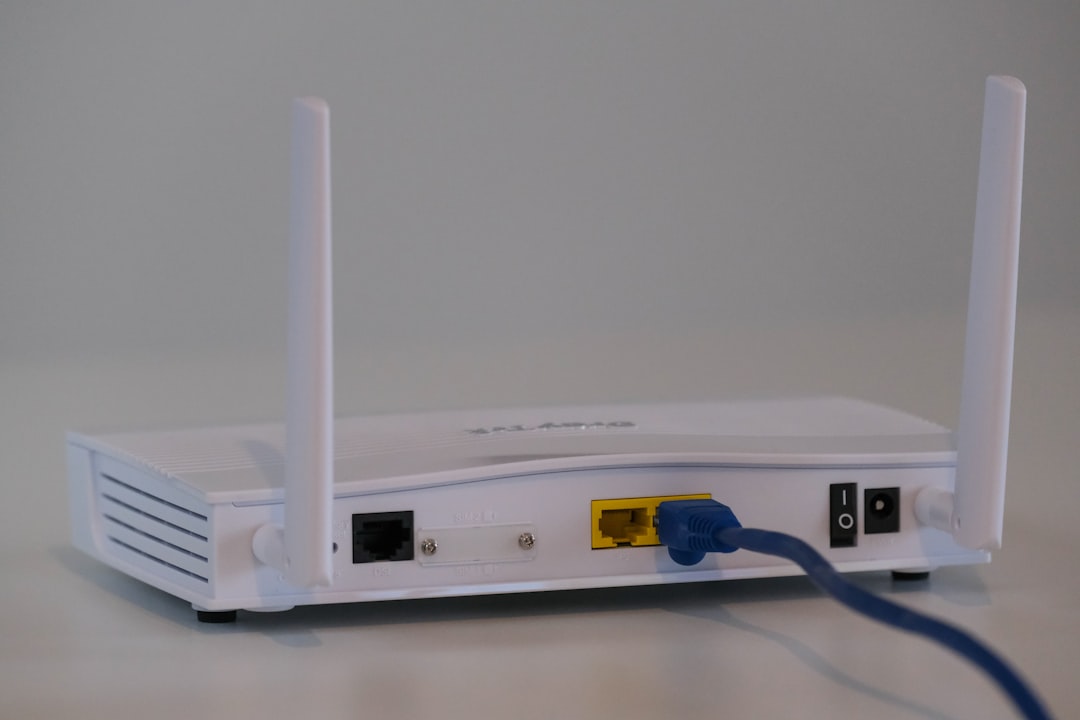
Most routers have a sticker on the back, bottom, or side. This sticker often shows the default Wi-Fi name and password.
Look for words like:
- SSID — this is the Wi-Fi network name.
- Password — this is the Wi-Fi security key.
- Network Key — also the Wi-Fi security key.
- WPA Key — yes, also the same thing.
If you never changed your Wi-Fi password, the sticker may still be correct.
2. In Your Router Settings
You can also log in to your router’s control panel. This is where you can view or change the Wi-Fi password.
To do this, you usually type the router’s IP address into a web browser. Common ones are 192.168.0.1 or 192.168.1.1. Then you sign in with the router admin username and password.
This is not always the same as your Wi-Fi password. Annoying? Yes. Important? Also yes.
3. In Your Internet Provider’s App
Many internet companies now have apps. These apps often show your Wi-Fi name and password. They may also let you change them in a few taps.
This is often the easiest option.
4. On a Device That Is Already Connected
If your computer or phone already connects to the Wi-Fi, it may be able to show the saved password. The steps depend on your device.
On Windows, you can find it in network settings. On macOS, you can find it in Keychain Access or Passwords. On many phones, you can share the Wi-Fi using a QR code.
What Makes a Good Wi-Fi Security Key?
A good Wi-Fi key is like a good hiding spot for cookies. Not obvious. Not easy to guess. Not “password123.”
A strong Wi-Fi password should be:
- Long. Aim for at least 12 to 16 characters.
- Unique. Do not reuse your email or bank password.
- Mixed. Use letters, numbers, and symbols.
- Random. Avoid names, birthdays, and pet names.
- Memorable. You still need to type it sometimes.
Here is a simple trick. Use a short phrase with extra twists.
Example: PizzaMoon!Tiger47
That is much better than johnwifi or 12345678. It is longer. It has different character types. It is also easier to remember than a pile of random nonsense.
What Are WPA, WPA2, and WPA3?
These are Wi-Fi security standards. Think of them as different types of locks.
- WEP: Very old. Very weak. Avoid it.
- WPA: Better than WEP, but still outdated.
- WPA2: Strong and widely used.
- WPA3: Newer and stronger.
If your router supports WPA3, use it. If not, WPA2 is usually fine for most homes.
Do not use WEP unless your router is from a museum exhibit. If your router only supports WEP, it may be time for a new router.
Should You Change the Default Wi-Fi Password?
Yes. You should.
The default password on your router may be secure, but it is still a default. It may be printed on a sticker. It may be known by your internet provider. It may also be shared with anyone who had access to the router box.
Changing it gives you more control.
Also, change the Wi-Fi name if it reveals personal information. Do not call it SmithFamilyHouse or Apartment2B. That tells people too much.
Fun Wi-Fi names are fine. Just keep them safe. Pretty Fly for a WiFi still gets a pass.
How Often Should You Change Your Wi-Fi Security Key?
You do not need to change it every week. This is not a spy movie.
But you should change it when:
- You move into a new home.
- You get a used router.
- A roommate moves out.
- You gave the password to many guests.
- You think someone is using your Wi-Fi without permission.
- Your internet suddenly becomes very slow for no clear reason.
You can also create a guest network. This is a separate Wi-Fi network for visitors. It lets them use the internet without giving them access to your main devices.
What If You Forget Your Wi-Fi Security Key?
Do not worry. This happens all the time.
You can try these steps:
- Check the sticker on your router.
- Look in your internet provider’s app.
- Check a device that is already connected.
- Log in to your router settings.
- Reset the router if nothing else works.
A router reset usually restores the default network name and password. But be careful. It may also erase custom settings. If you are not sure, contact your internet provider first.
Quick Tips to Keep Your Wi-Fi Safe
- Use WPA2 or WPA3.
- Pick a long and unique password.
- Change the default router admin password.
- Turn on automatic router updates if available.
- Use a guest network for visitors.
- Do not share your Wi-Fi key with everyone.
- Place your router in the center of your home.
That last tip is not just about speed. It can also reduce how far your Wi-Fi signal reaches outside your home. Less signal in the parking lot means fewer curious strangers trying to connect.
The Bottom Line
A Wi-Fi security key is just your wireless password. But it does an important job. It protects your network, your devices, and your data.
Choose a strong key. Keep it private. Update it when needed. Use modern security like WPA2 or WPA3.
Your Wi-Fi may be invisible, but it still needs a good lock. Think of your security key as the bouncer at the tiny internet nightclub in your router. If the name is not on the list, they do not get in.