
For freelancers and small creative teams, delivering polished video content quickly and cost-effectively is critical. Whether you’re sending social media clips to clients, exporting YouTube tutorials, or preparing high-resolution marketing videos, the right export tool can make the difference between a smooth workflow and endless rendering headaches. Fortunately, you don’t need a Hollywood-sized budget to produce professional-grade results. Today’s market offers several affordable video export tools that balance speed, quality, flexibility, and cost.
TLDR: Freelancers and small teams don’t need expensive enterprise software to export professional-quality videos. Tools like HandBrake, DaVinci Resolve, Adobe Media Encoder, and others offer powerful export features at affordable prices—or even free. The best choice depends on your workflow, collaboration needs, and delivery formats. Below, we break down seven top video export tools that combine reliability, performance, and value.
Why Choosing the Right Video Export Tool Matters
Exporting isn’t just the final click before sending a file to a client. It determines video quality, compression efficiency, file size, platform compatibility, and overall delivery speed. Freelancers often juggle multiple clients with different specifications—1080p for Instagram, 4K for YouTube, lightweight previews for email approvals.
A good export tool helps you:
- Reduce render times without sacrificing quality
- Optimize compression for each platform
- Maintain color accuracy
- Automate repetitive export tasks
- Handle batch exporting efficiently
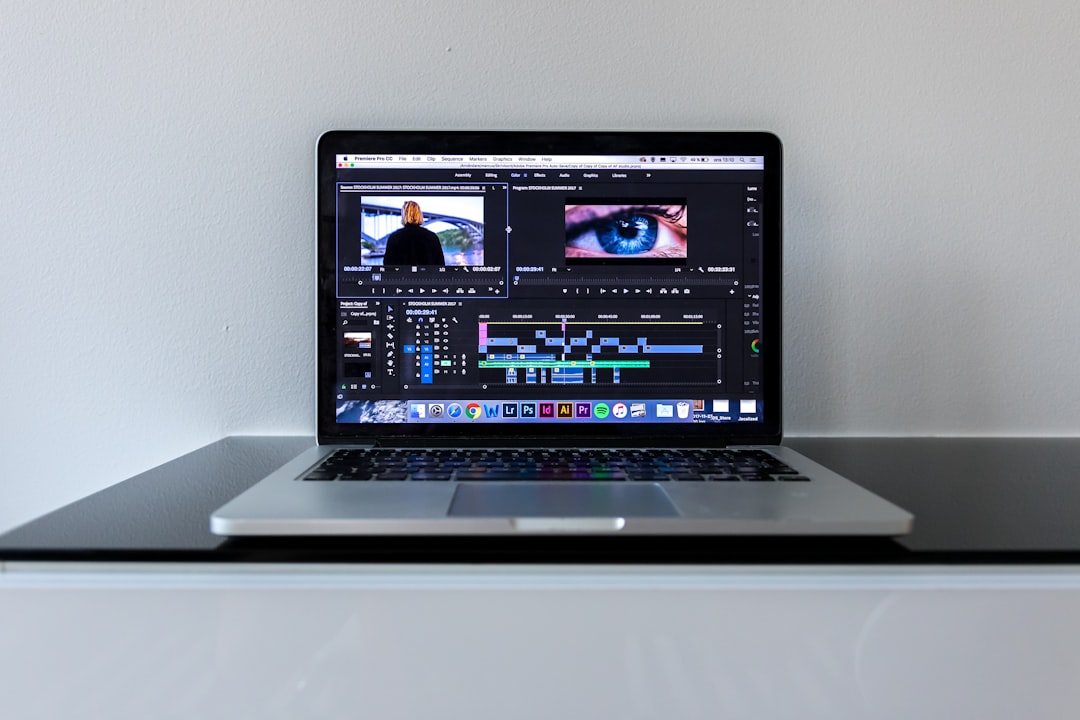
1. HandBrake (Free & Open Source)
Best for: Budget-conscious creators needing fast compression and format conversion.
HandBrake has long been a favorite among freelancers who need reliable export capabilities without the cost. Although it’s technically a video transcoder rather than a full editing suite, it excels at preparing final deliverables.
Key Features:
- Supports MP4, MKV, and WebM formats
- Advanced compression controls (H.264, H.265)
- Batch processing capabilities
- Presets for YouTube, Vimeo, and social platforms
For freelancers delivering multiple versions of the same project, HandBrake can dramatically shrink file sizes while maintaining quality.
2. DaVinci Resolve (Free & Studio Version)
Best for: High-quality exports with professional color grading workflows.
DaVinci Resolve’s free version includes extremely powerful export settings. It supports Ultra HD exports without watermarks and provides advanced control over bitrate, encoding formats, and resolution.
Advantages:
- Professional-grade render engine
- GPU acceleration for faster exports
- Built-in presets for platforms
- Seamless integration with editing and color tools
The Studio version adds collaborative features and expanded formats, making it ideal for small teams working on shared projects.
3. Adobe Media Encoder (Subscription-Based)
Best for: Teams already using Adobe Premiere Pro or After Effects.
Adobe Media Encoder streamlines export workflows by allowing background rendering while you continue editing. For freelancers managing tight deadlines, this multitasking capability is invaluable.
Why It’s Worth Considering:
- Wide format and codec support
- Watch folders for automated exports
- Batch rendering queue
- Seamless Creative Cloud integration
If your team already subscribes to Adobe Creative Cloud, Media Encoder adds significant efficiency without additional costs.

4. Shotcut (Free)
Best for: Lightweight, cross-platform exporting.
Shotcut offers a surprisingly capable export panel for a free tool. It supports hundreds of audio and video formats thanks to FFmpeg integration.
Highlights:
- Custom export presets
- Hardware encoding support
- Direct file streaming
- Simple interface for beginners
While it may lack some of the polish of paid software, Shotcut is perfect for freelancers who need quick turnarounds on standard delivery formats.
5. Movavi Video Converter (Affordable One-Time Fee)
Best for: Fast exports with user-friendly controls.
Movavi offers a balance between simplicity and performance. Its Video Converter is especially useful for fast reformatting and compression.
Standout Features:
- Hardware-accelerated conversion
- Preset device profiles
- Batch file conversion
- Easy trimming before export
Freelancers working with clients who constantly request new file formats will appreciate Movavi’s speed and ease of use.
6. FFmpeg (Free, Command-Line Power)
Best for: Tech-savvy users who want maximum control.
FFmpeg isn’t flashy—but it’s incredibly powerful. Many commercial export tools actually run on FFmpeg behind the scenes.
Why Advanced Users Love It:
- Precise bitrate and codec control
- Scripting and automation capabilities
- Batch processing via scripts
- Wide format compatibility
With FFmpeg, small teams can automate exports entirely. For example, you can script a workflow that automatically exports client preview versions and final 4K masters simultaneously.
7. Wondershare UniConverter (Budget-Friendly All-in-One)
Best for: Small teams managing multiple content formats.
UniConverter provides a clean interface and powerful compression capabilities. It’s well-suited for marketing teams who need polished deliverables in multiple sizes.
Key Benefits:
- High-speed GPU acceleration
- Social media export presets
- Batch compression
- Basic editing tools included
Its affordability and straightforward interface make it appealing for freelancers who prefer not to wrestle with technical settings.

How to Choose the Right Tool for Your Needs
Not every freelancer needs Hollywood-level encoding options. When deciding which tool suits you best, consider the following:
- Budget: Free tools like HandBrake and Shotcut may be sufficient.
- Workflow: Adobe users benefit from Media Encoder integration.
- Collaboration: DaVinci Resolve Studio supports team projects.
- Automation: FFmpeg excels at scripted workflows.
- Ease of Use: Movavi and UniConverter offer beginner-friendly interfaces.
If you frequently deliver to social platforms, choose a tool with ready-made presets. If you handle high-end commercial projects, prioritize color accuracy and bitrate precision.
Performance Tips for Faster Exports
No matter which tool you select, optimizing your system can significantly improve rendering performance:
- Use GPU acceleration when available.
- Close unnecessary background applications.
- Store project files on SSD drives.
- Match export resolution to project settings to avoid extra processing.
- Create preset templates for recurring client needs.
Small efficiencies compound over time. Saving just ten minutes per export across dozens of projects can free up hours each month.
Final Thoughts
The days when professional video exports required expensive studio software are long gone. Freelancers and small teams now have access to powerful, affordable solutions that rival enterprise systems. Whether you choose the open-source flexibility of HandBrake and FFmpeg, the professional depth of DaVinci Resolve, or the seamless automation of Adobe Media Encoder, there’s a solution tailored to your workflow and budget.
The key is understanding your delivery requirements, evaluating how often you export, and balancing cost against efficiency. Investing in the right export tool isn’t just about saving money—it’s about speeding up collaboration, impressing clients with reliable quality, and positioning your creative business for scalable growth.
In the competitive world of video production, faster exports and cleaner compression can translate directly into happier clients and more repeat work. Choose wisely, optimize your setup, and let your tools work as hard as you do.