
There are few phone problems more frustrating than seeing a SIM card detected but still having “No Service,” “Emergency Calls Only,” “Not Registered on Network,” or “SOS” at the top of your screen. Your phone knows a SIM is inserted, yet it cannot connect to your carrier’s network. The good news is that many network registration errors on Android and iPhone are caused by temporary glitches, incorrect settings, damaged SIM contacts, or carrier-side issues that you can often troubleshoot at home.
TLDR: If your SIM card is inserted but your phone shows no service, start by toggling Airplane Mode, restarting the phone, and checking whether your carrier has an outage. Then reseat the SIM card, update carrier settings, reset network settings, and make sure the device is not locked, blocked, or using the wrong network mode. If none of these steps work, test the SIM in another phone or contact your carrier for a replacement SIM or account check.
Why Your Phone Detects the SIM but Shows No Service
A SIM card does two main things: it identifies your mobile account and allows your phone to authenticate with your carrier. However, inserting a SIM does not automatically guarantee network access. Your phone still needs to register with a nearby cell tower, confirm that your account is active, and use compatible network bands.
When registration fails, the cause usually falls into one of these categories:
- Temporary software glitch: The modem or network service on your phone may have frozen or failed to reconnect.
- Poor coverage: You may be in an area where your carrier has weak or no signal.
- SIM card issue: The card may be dirty, damaged, expired, or not provisioned correctly.
- Carrier problem: There may be an outage, suspended account, unpaid bill, or provisioning error.
- Phone compatibility issue: The device may not support your carrier’s bands, VoLTE requirements, or 5G settings.
- Locked or blocked phone: A carrier-locked, blacklisted, or reported-lost phone may refuse service.
Understanding these possibilities makes troubleshooting much easier because you can move from simple fixes to deeper checks without wasting time.
1. Turn Airplane Mode On and Off
The quickest fix is often the simplest. Turning on Airplane Mode forces your phone to disconnect from all wireless radios, including cellular. Turning it off makes the phone search for networks again and attempt fresh registration.
On Android: Swipe down from the top of the screen and tap Airplane Mode. Wait 15 to 30 seconds, then tap it again.
On iPhone: Open Control Center, tap the airplane icon, wait a few seconds, then turn it off. You can also go to Settings > Airplane Mode.
If your signal returns after this, the issue was likely a temporary registration hiccup. If not, continue with the next steps.
2. Restart Your Phone
A restart refreshes the cellular modem, SIM detection process, and system services that manage network registration. This is especially useful after traveling, switching SIM cards, installing updates, or moving between coverage zones.
Power the phone off completely, wait about 30 seconds, and turn it back on. Once it starts, give it a minute or two to search for service. Avoid repeatedly removing the SIM during this time, as the phone may need a moment to reconnect.
3. Check for Carrier Outages or Account Problems
Before assuming your phone is broken, check whether your carrier is having a service outage. Network maintenance, tower failures, storms, or regional technical problems can all prevent registration.
You can verify this by:
- Checking your carrier’s official outage page or app.
- Looking at social media updates from your carrier.
- Asking someone nearby who uses the same network.
- Calling customer support from another phone or using Wi Fi calling if available.
Also confirm that your mobile account is active. A suspended line, unpaid bill, expired prepaid plan, or SIM that has not been activated properly can all produce a no service message even when the SIM is physically detected.
4. Remove, Inspect, and Reinsert the SIM Card
If the SIM card is slightly misaligned or the metal contacts are dirty, your phone may detect the card but struggle to authenticate with the network. Turn off the device before removing the SIM tray, then inspect both the SIM and tray carefully.
Look for:
- Scratches or cracks on the gold contacts.
- Dust, lint, or moisture inside the SIM tray.
- A bent tray that prevents proper contact.
- An incorrectly cut SIM if it was trimmed manually.
Gently wipe the SIM contacts with a clean, dry microfiber cloth. Do not use water, household cleaners, or sharp objects. Reinsert the SIM securely, turn the phone back on, and check whether service returns.
5. Manually Select Your Network
Phones usually choose the carrier network automatically, but sometimes they get stuck trying to register on the wrong network, especially after roaming or crossing borders. Manually selecting your carrier can help.
On Android: Go to Settings > Network & Internet or Connections > Mobile Networks > Network Operators. Turn off automatic selection and choose your carrier from the list.
On iPhone: Go to Settings > Cellular > Network Selection. Turn off Automatic, wait for available networks to appear, and select your carrier.
If your carrier does not appear, you may be outside coverage, the SIM may not be active, or the phone may not support that network.
6. Check Mobile Network Mode and 5G Settings
An incorrect network mode can cause registration errors. For example, some carriers require VoLTE for calls, while others may not provide reliable 5G in every area. If your phone is forced to use a network type that is unavailable or unsupported, it may show no service.
On Android, check Settings > Mobile Networks > Preferred Network Type. If it is set to 5G only or LTE only, try switching to 5G/LTE/3G/2G auto or a similar automatic option. On iPhone, go to Settings > Cellular > Cellular Data Options > Voice & Data and try switching between 5G Auto, LTE, or available options from your carrier.
Tip: If you are traveling internationally, make sure data roaming is enabled if your plan requires it. However, check roaming fees first to avoid surprise charges.
7. Update Carrier Settings and Phone Software
Carrier settings tell your phone how to connect to your provider’s network, including APN details, calling features, SMS configuration, and roaming behavior. Outdated settings can lead to failed registration, especially after a carrier upgrades its network.
On iPhone: Connect to Wi Fi, then go to Settings > General > About. If a carrier settings update is available, you should see a prompt.
On Android: Carrier settings are usually updated through system updates or carrier apps. Go to Settings > System > Software Update or Settings > Software Update, depending on your phone brand.
Install any available operating system updates as well. Android and iOS updates often include modem firmware fixes that can improve cellular stability.
8. Reset Network Settings
If your phone has corrupted network preferences, resetting network settings can clear them. This does not delete your photos, apps, or personal files, but it will erase saved Wi Fi networks, Bluetooth pairings, VPN settings, and cellular network preferences.
On Android: Go to Settings > System > Reset Options > Reset Wi Fi, Mobile & Bluetooth. On Samsung devices, look under Settings > General Management > Reset > Reset Network Settings.
On iPhone: Go to Settings > General > Transfer or Reset iPhone > Reset > Reset Network Settings.
After the reset, restart the phone and allow it to reconnect to the carrier network.
9. Test the SIM in Another Phone
One of the best ways to identify the problem is to test your SIM card in another unlocked, compatible phone. If the SIM works in another device, your original phone may have a software, antenna, modem, or lock-related issue. If the SIM still shows no service, the SIM card or account is likely the problem.
You can also test a known working SIM in your phone. If another SIM connects successfully, your phone is probably fine. If no SIM works, the phone may need further inspection or repair.

10. Check Whether the Phone Is Locked or Blocked
A phone that is locked to one carrier may reject or fail to register a SIM from another carrier. This is common with financed phones, older carrier devices, or secondhand phones. Contact the original carrier to confirm unlock eligibility.
Also check whether the device has been blacklisted. Phones reported lost, stolen, or involved in unpaid installment plans may be blocked from cellular networks. You can usually check the IMEI through your carrier or a trusted IMEI checker. To find it, dial *#06# or look in your phone’s settings.
11. Review APN Settings for Data Issues
APN settings usually affect mobile data rather than basic signal registration, but incorrect APN details can make the phone appear partially disconnected. If you have bars but no mobile internet, MMS, or carrier data, check the APN.
On Android, go to Settings > Mobile Networks > Access Point Names and compare the values with your carrier’s official APN settings. On iPhone, APN settings may be hidden unless your carrier allows editing. You can check under Settings > Cellular > Cellular Data Network if available.
12. When to Contact Your Carrier or Get Repairs
If you have tried the steps above and still see no service, it is time to involve your carrier. Ask them to:
- Confirm your account and plan are active.
- Refresh or reprovision your SIM on the network.
- Check for outages or coverage changes in your area.
- Verify that your IMEI is allowed on the network.
- Provide a replacement SIM or help activate an eSIM.
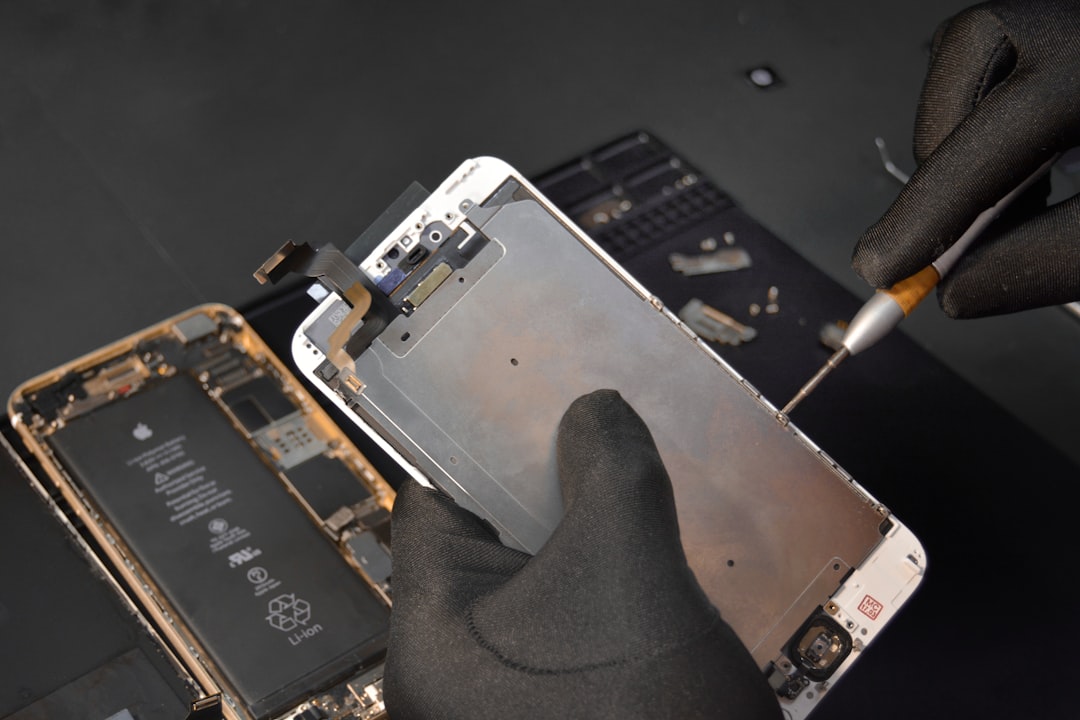
If the carrier confirms everything is fine and multiple SIM cards fail in your phone, the issue may be hardware-related. A damaged antenna, faulty SIM reader, or modem problem can prevent network registration. In that case, visit an authorized repair center, especially if the phone was dropped, exposed to water, or recently repaired.
Final Thoughts
A SIM card inserted but no service message does not always mean your phone or SIM is dead. In many cases, the fix is as simple as restarting the device, refreshing network registration, updating carrier settings, or reseating the SIM. Work through the steps in order, from quick software fixes to SIM testing and carrier checks.
If the problem follows the SIM, request a replacement or account refresh. If the problem stays with the phone, investigate locks, software updates, and potential hardware faults. With a systematic approach, you can usually identify whether the issue belongs to the network, the SIM card, or the device itself—and get back online faster.