
If you’ve ever tried to schedule a message on your iPhone only to realize that the Send Later option is missing, you’re not alone. Apple introduced scheduled messaging to make communication more flexible, but many users struggle to find or enable it. Whether it’s completely gone from your iPhone or simply not appearing where you expect it, the issue can usually be resolved with a few simple adjustments. In this guide, we’ll walk through why Send Later is not showing on your iPhone and the six most effective ways to fix it.
TLDR: If the Send Later feature is not showing on your iPhone, it’s usually due to outdated iOS software, unsupported messaging apps, incorrect settings, or region restrictions. Updating to the latest iOS version, checking app compatibility, and verifying your message type (iMessage vs SMS) often solves the problem. You may also need to review Screen Time restrictions or reset your device settings. Follow the six fixes below to quickly restore scheduled messaging functionality.
Understanding the Send Later Feature
Apple introduced scheduled messaging primarily in the Messages and Mail apps. In the Messages app, you can schedule an iMessage to send at a later time by long-pressing the send button. In Mail, you can tap and hold the send arrow to reveal scheduling options.
However, there are conditions:
- Your device must be running a supported version of iOS.
- The message must typically be an iMessage (blue bubble), not an SMS (green bubble).
- Certain regional or account settings may affect availability.
If any of these conditions are not met, the Send Later option might not appear.
Fix 1: Update Your iPhone to the Latest iOS Version
The most common reason for Send Later not showing on iPhone is outdated software. Apple releases messaging features alongside specific iOS updates.
How to Check for Updates
- Open Settings.
- Tap General.
- Select Software Update.
- If an update is available, tap Download and Install.
Tip: Make sure your iPhone is connected to Wi-Fi and has at least 50% battery before updating.
After updating, restart your phone and check if the Send Later option appears when long-pressing the send arrow in Messages or Mail.
Fix 2: Make Sure You’re Sending an iMessage (Not SMS)
Many users don’t realize that scheduling often works only with iMessage (blue messages). If your contact doesn’t use iMessage or you don’t have iMessage enabled, the Send Later feature may not show.
Check If iMessage Is Enabled
- Go to Settings.
- Tap Messages.
- Ensure iMessage is toggled on.
Also ensure the message bubble is blue. If it’s green, you’re sending an SMS, which may not support scheduling.
If necessary, verify that:
- You are connected to the internet.
- The recipient also has iMessage enabled.
Fix 3: Check App Compatibility
Some users expect the Send Later feature to work in third-party messaging apps like WhatsApp or Messenger. However, Apple’s built-in scheduling functionality is typically limited to native apps such as:
- Messages (iMessage)
- Apple Mail
If you’re using a third-party app, the feature may not exist within that app. Below is a quick comparison:
| App | Native Send Later Support | Requires Update? | Notes |
|---|---|---|---|
| Apple Messages | Yes (iMessage only) | Yes | Long press send button |
| Apple Mail | Yes | Yes | Hold send arrow |
| No (built-in) | App dependent | Requires third-party workaround | |
| Facebook Messenger | No | App dependent | No native scheduling |
If you need scheduling in third-party apps, you may need automation tools like the Shortcuts app, though they require manual setup.
Fix 4: Use the Correct Gesture to Reveal Send Later
Sometimes the feature isn’t missing—it’s just hidden behind a gesture many users overlook.
In Messages:
- Type your message.
- Press and hold the send arrow.
- Select Send Later.
- Choose your preferred date and time.
In Mail:
- Compose your email.
- Press and hold the blue send arrow.
- Select one of the scheduling options.
If you only tap the send arrow quickly, the message will send immediately and you won’t see scheduling options. The long-press is essential.
Fix 5: Review Screen Time Restrictions
Sometimes system features are restricted without users realizing it. If Screen Time limits are enabled, certain messaging options may behave differently.
How to Check Screen Time Restrictions
- Open Settings.
- Tap Screen Time.
- Select Content & Privacy Restrictions.
- Review allowed apps and communication limits.
If messaging restrictions are active:
- Temporarily disable them.
- Test whether Send Later appears.
Parental controls or enterprise device management profiles can also disable features. If your iPhone is issued by an employer or school, contact IT support.
Fix 6: Reset All Settings
If none of the above solutions work, the problem may stem from corrupted settings. Resetting system settings can fix hidden software glitches without deleting your data.
Steps to Reset Settings
- Go to Settings.
- Tap General.
- Select Transfer or Reset iPhone.
- Tap Reset.
- Choose Reset All Settings.
Important: This does not delete photos or apps, but it will reset:
- Wi-Fi passwords
- Display settings
- Privacy permissions
Once your phone restarts, test the Messages or Mail app again.
Bonus: Restart Your iPhone
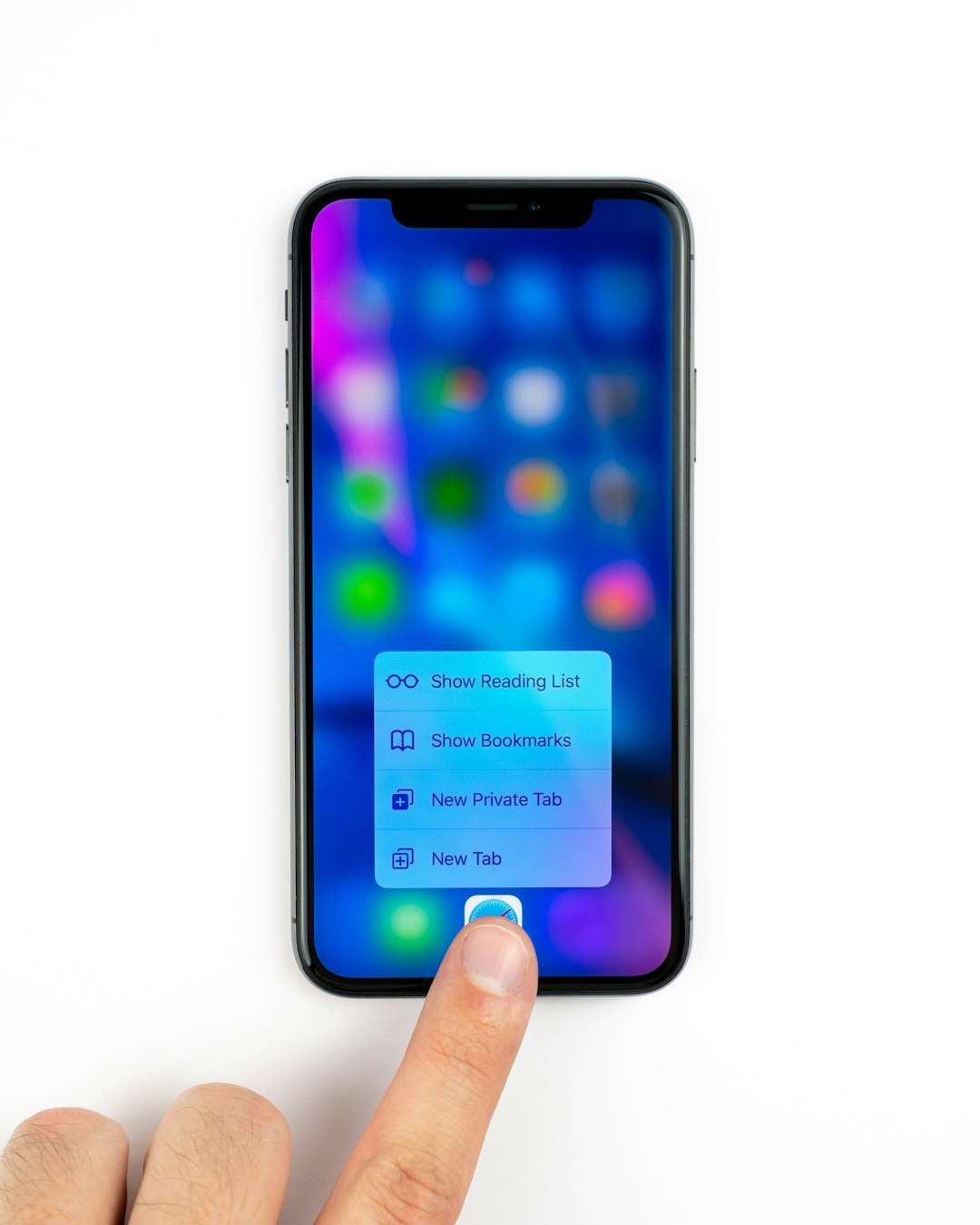
While simple, restarting your iPhone can often restore missing features. Temporary system glitches sometimes prevent interface elements from loading correctly.
To restart:
- Press and hold the side button with a volume button.
- Slide to power off.
- Wait 10 seconds and turn it back on.
This quick action frequently resolves UI-related bugs.
Why Send Later Is Useful
If you’re going through this trouble to enable the feature, it’s worth remembering why it matters. Scheduled messaging is powerful because it allows you to:
- Send birthday wishes at midnight without staying up.
- Message colleagues during business hours.
- Avoid disturbing someone late at night.
- Plan follow-ups ahead of time.
For professionals, students, and frequent communicators, this feature adds both convenience and courtesy.
When to Contact Apple Support
If you’ve tried all six fixes and the Send Later option still does not appear, consider contacting Apple Support. The issue may be:
- A regional limitation.
- A carrier-related limitation.
- A deeper iOS bug requiring official troubleshooting.
You can reach Apple Support through the Support app or Apple’s website.
Final Thoughts
When Send Later is not showing on your iPhone, it’s usually not a major problem—just a missing update, a disabled setting, or the use of SMS instead of iMessage. By systematically working through these six fixes, you can quickly restore scheduling functionality and enjoy better control over your communication.
The key steps to remember are: update your iOS, ensure you’re using iMessage, use the correct long-press gesture, verify Screen Time settings, and reset system settings if needed. In most cases, one of these fixes will bring the feature back immediately.
Once enabled, Send Later becomes one of those small but powerful features you’ll wonder how you ever lived without.