
Trying to install macOS and seeing the message “Installation couldn’t be completed” can feel like hitting a brick wall. You were ready for a fresh start. Instead, your Mac throws up a scary warning. Don’t panic. Most installation errors are common. And most of them are fixable.
TL;DR: Mac installation errors usually happen because of internet problems, damaged installers, low storage, or disk issues. Start by restarting your Mac and checking your internet connection. Then verify your date and time settings, disk space, and Disk Utility health. If needed, reinstall using Recovery Mode or a bootable USB.
Let’s break it down. Step by step. Simple and stress-free.
Why This Error Happens
The message “Installation couldn’t be completed” is vague. It doesn’t tell you much. But behind the scenes, your Mac is struggling with something specific.
Here are the most common causes:
- Weak or unstable internet connection
- Corrupt macOS installer
- Incorrect date and time settings
- Not enough free storage space
- Disk errors or drive problems
- Apple server issues
The good news? You can troubleshoot most of these at home.
1. Start With the Simple Fix: Restart
Yes. Turn it off and on again.
A restart clears temporary memory glitches. It can reset background processes. Sometimes that’s all it takes.
To restart:
- Hold the power button until your Mac shuts down.
- Wait 10 seconds.
- Turn it back on.
Then try the installation again.
If it fails again, move on.
2. Check Your Internet Connection
macOS installation often needs internet access. Especially if you’re reinstalling from Recovery Mode.
A weak Wi-Fi signal can interrupt the download. That interruption leads to failure.
What to do:
- Switch to a stronger Wi-Fi network
- Move closer to your router
- Use a wired Ethernet connection if possible
- Restart your router
If your internet drops during installation, the process may stop halfway.
Always choose a stable network before starting again.
3. Make Sure You Have Enough Storage
macOS needs space to breathe.
If your disk is almost full, installation can fail. New versions often require 20GB or more of free space.
To check storage in Recovery Mode:
- Open Disk Utility.
- Select your main drive.
- Check available space.
If you’re low on space:
- Delete large unused files
- Remove old apps
- Empty the Trash
- Move files to an external drive
Storage problems are one of the most common causes.
4. Fix the Date and Time Trick
This one surprises many people.
If your Mac’s date and time are wrong, installation may fail. The security certificates used by macOS depend on accurate system time.
Sometimes after replacing a battery or wiping a disk, the date resets to something random like 2001.
How to check in Recovery Mode:
- Open the Utilities menu.
- Select Terminal.
- Type: date
- Press Enter.
If the date is wrong, set it manually. Example format:
mmddHHMMyy
Once corrected, quit Terminal and try installing again.
Small fix. Big impact.
5. Use Disk Utility to Repair the Drive
If your disk has errors, installation may stop.
Disk Utility has a built-in repair tool called First Aid.
Here’s how to use it:
- Boot into macOS Recovery (hold Command + R during startup).
- Open Disk Utility.
- Select your main disk.
- Click First Aid.
- Run the scan and repair process.
If errors are found, let the repair finish completely.
Afterward, try the installation again.
If Disk Utility cannot repair the disk, your drive may have hardware damage.
6. Try Installing in Safe Mode
Safe Mode loads only essential system files.
It disables third-party extensions and startup programs.
Sometimes background software blocks installation.
To enter Safe Mode (Intel Mac):
- Restart your Mac.
- Hold the Shift key during startup.
For Apple Silicon Macs:
- Shut down.
- Press and hold the power button.
- Select your disk.
- Hold Shift and click Continue in Safe Mode.
Then try installing again.
7. Create a Bootable USB Installer
If online installation keeps failing, go old-school.
Create a bootable USB installer.
This method bypasses internet issues.
You’ll need:
- A USB drive (16GB or larger)
- Another working Mac
- The macOS installer from the App Store
Once created, plug it into your Mac.
Restart while holding the Option key.
Select the USB drive from the menu.
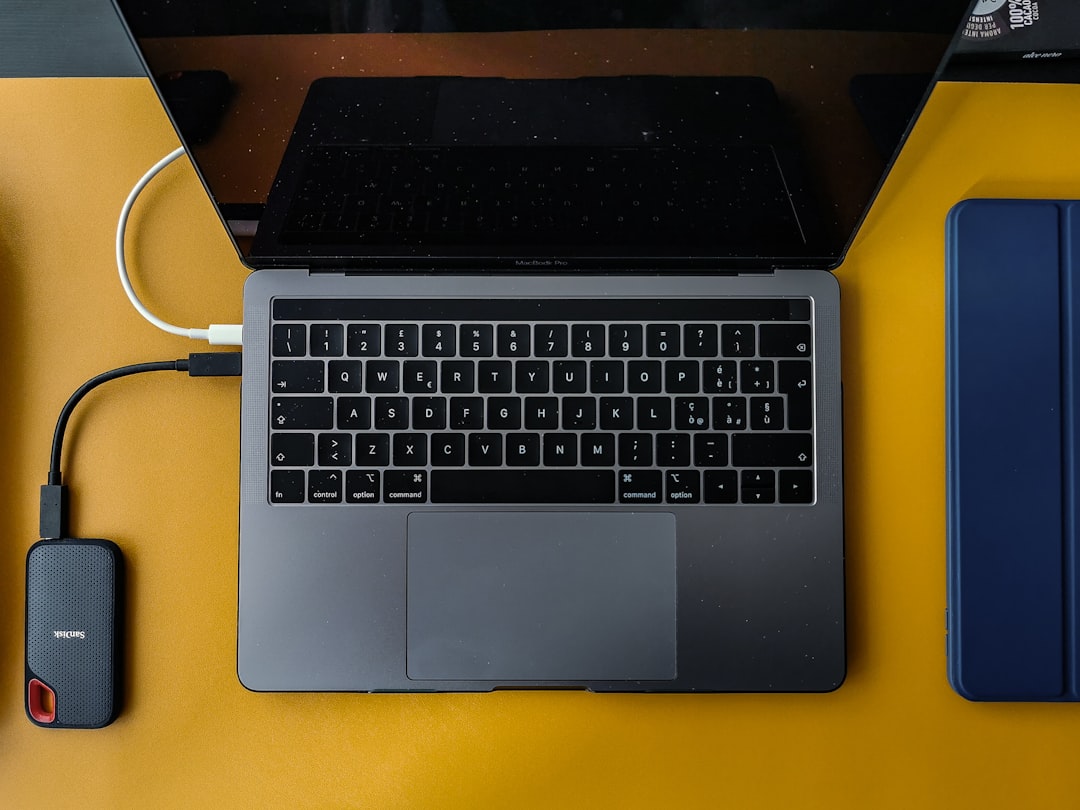
This method is very reliable.
8. Check Apple’s System Status
Sometimes the issue isn’t you.
Apple’s servers occasionally go down. Especially during new macOS releases.
If servers are experiencing problems:
- Wait a few hours
- Try again later
This is rare. But it does happen.
9. Erase and Install (Last Resort)
If nothing works, you may need a clean install.
Warning: This erases your data.
Always back up first using Time Machine if possible.
To erase your disk:
- Boot into Recovery Mode.
- Open Disk Utility.
- Select your drive.
- Click Erase.
- Format as APFS (for modern Macs).
Then reinstall macOS.
This solves deep system corruption issues.
10. What If It’s Hardware?
If installation still fails, hardware might be the problem.
Possible issues include:
- Failing SSD or hard drive
- Bad RAM
- Logic board problems
Warning signs:
- Strange clicking noises
- Frequent crashes
- Overheating
- Drive not appearing in Disk Utility
At this point, professional repair may be needed.
Pro Tips to Avoid Future Errors
Prevention is easier than repair.
- Keep at least 25GB of free space
- Update macOS regularly
- Maintain stable internet during installations
- Run Disk Utility First Aid every few months
- Back up often using Time Machine
Healthy habits reduce installation stress.
Quick Troubleshooting Checklist
If you’re in a rush, scan this list:
- ✅ Restart your Mac
- ✅ Check Wi-Fi connection
- ✅ Verify date and time
- ✅ Ensure enough storage
- ✅ Run Disk Utility First Aid
- ✅ Try Safe Mode
- ✅ Use bootable USB installer
- ✅ Check Apple server status
- ✅ Consider clean install
Work through them one by one.
Most users fix the issue within the first three steps.
Final Thoughts
Seeing “Installation couldn’t be completed” is frustrating. No one likes vague error messages. But your Mac is not doomed.
Most installation problems come from simple things. Internet issues. Wrong time settings. Low storage space.
Take a breath. Follow the steps carefully. Don’t skip around.
Technology fails sometimes. That’s normal.
With patience and the right steps, your Mac will be up and running again. Fresh. Clean. Ready to go.
And next time you see an installation error? You’ll know exactly what to do.