
For editors and creatives seeking to elevate their color grading and video editing projects, DaVinci Stillwater offers a powerful, streamlined solution tailored for optimized workflow and enhanced visual output. Designed with precision tools, Stillwater extends the renowned DaVinci ecosystem by providing unique utilities focused on stills and color management. However, leveraging its full potential takes more than surface-level knowledge—it demands insider insights and tactical know-how.
TLDR: Insider Tips for Using DaVinci Stillwater Effectively
DaVinci Stillwater is a valuable extension to your color grading workflow, particularly for precision still image comparison and persistent grading reference. This guide covers tips on organizing stills, color matching techniques, and maximizing Stillwater within DaVinci Resolve. Utilize scene thumbnails, custom labeling, and LUT previews to speed up your process. With a bit of setup, Stillwater can greatly enhance your efficiency and creative control.
Understand What Stillwater Brings to the Table
At its core, DaVinci Stillwater improves upon traditional frame grab tools by offering advanced stills management directly within the DaVinci Resolve environment. It’s primarily used by colorists to capture specific frames—called “stills”—from footage, which then serve as reference points for consistent grading across different scenes or cameras.
Stillwater doesn’t operate as a standalone tool; rather, it integrates tightly with Resolve’s Color page, allowing users to:
- Capture and label stills for different grading versions.
- Compare color grades using split-screen or side-by-side views.
- Create a visual reference library of LUT and grade styles.
- Drag stills to the timeline for rapid look application.
Organizing Your Stills Library for Speed and Clarity
One of the biggest challenges users face is managing hundreds of stills taken throughout different projects. Here’s where Stillwater’s tagging and categorization system can make a world of difference.
Insider tip #1: Create dedicated albums for major scenes or different cameras. This way, if a project involves complex scene transitions, the stills remain grouped logically for faster access.
Insider tip #2: Use descriptive labeling conventions. A label like “INT_DININGROOM_WARM1” is far more useful than something generic like “Look1”.
By treating your stills as a living library, you empower your future self with clear visual references and quick navigation.
Utilizing Split-Screen Comparison for Matching Shots
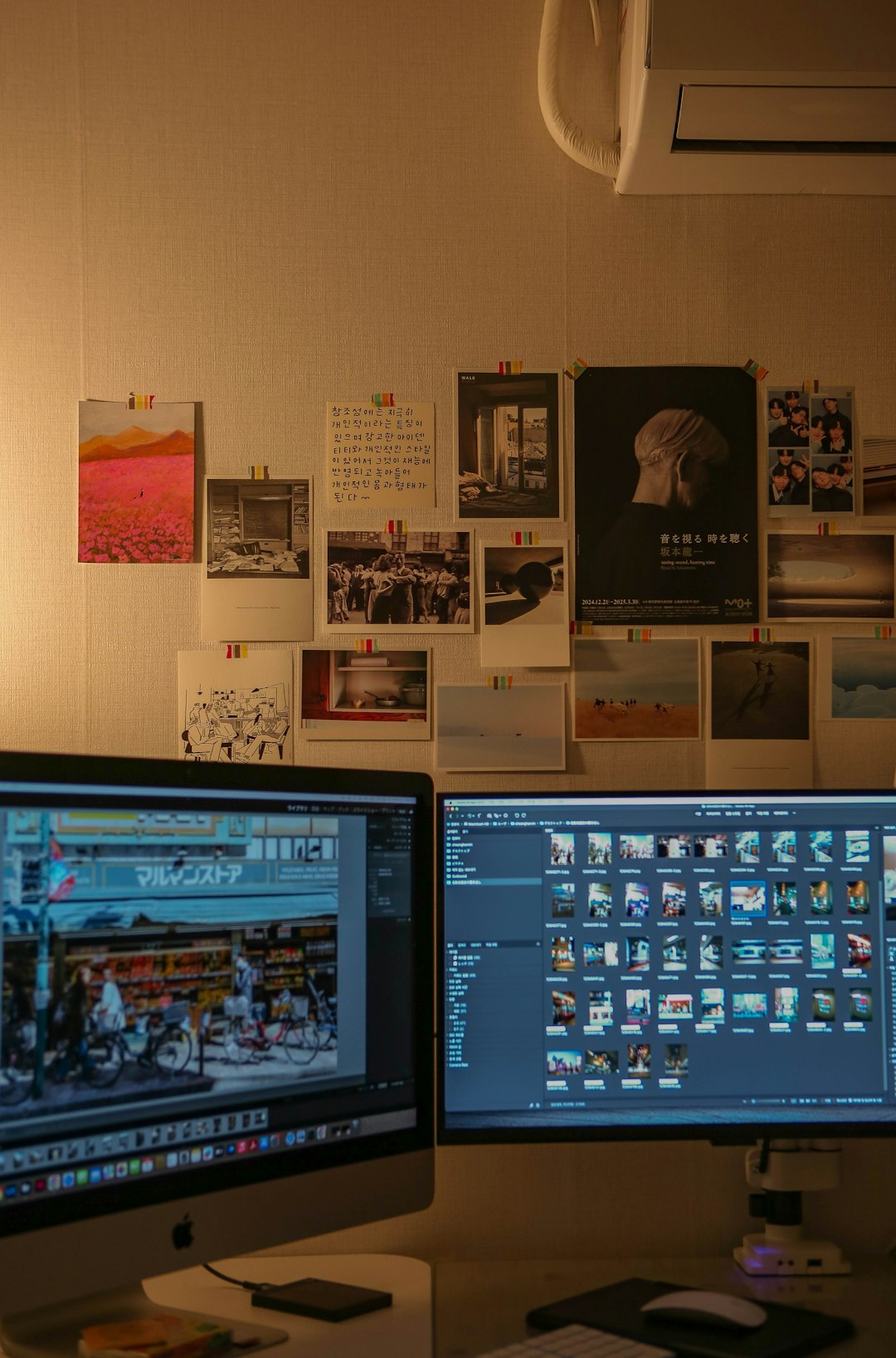
Color consistency across shots is non-negotiable in professional workflows. Stillwater enables this with its ultra-precise split-screen and wipes feature. You can compare the current working frame with any still in the gallery via:
- Split-screen horizontal wipe: Great for skin tone matching.
- Side-by-side: Perfect for comparing landscape lighting changes.
- Overlay blend: Useful when working on subtle gradation differences.
Insider tip #3: Assign hotkeys for split-screen toggling to reduce time spent navigating menus. Also, designate a custom layout in DaVinci Resolve’s UI to keep Stillwater tools immediately visible during grading sessions.
Sync Grades Quickly with Grabbed Stills
When working with multiple similar shots, applying the same color grade can save hours. Stillwater allows users to drag a grabbed still directly onto a clip in the Color page to instantly apply its grade settings—called a “Grade Lift”.
Insider tip #4: Before applying any still’s grade, always verify the node structure. Sometimes, tweaks or corrections specific to a previous shot might carry over unintentionally. Use the “Apply Grade Without Keyframes” option when syncing between camera angles or takes.
Create Lookbooks with LUT Visualization
As part of client-facing presentations or internal reference sharing, Stillwater can generate lookbooks showcasing different color styles. You can apply LUTs to keyframes, grab stills, and export these with references.
Insider tip #5: Use the gallery View LUT display mode to preview how a LUT affects a still before committing. This is especially helpful when showing clients multiple options before the final pick.
Combine the resulting lookbooks with PDF presentations or integrate into Frame.io for remote team collaborations.
Work Cross-Project with Archived Stills
Stillwater backs up stills as .dpx or .gallery files that you can import into other projects. This is a massive time-saver for commercial shooters working with branded color consistency or annual campaigns.
Insider tip #6: Always export your most successful looks at the end of a project. There’s nothing more helpful six months down the line than a still labeled “High Contrast – Jan ’24 Campaign” showing all node structures intact.
Automation with Smart Color Matching
DaVinci Stillwater integrates smart matching technology that can attempt to align the current image with a still’s grading automatically. While this isn’t a silver bullet, it can set a base grade quickly.
Insider tip #7: Tweak the image histogram and contrast in Resolve before initiating an auto-match from Stillwater. Cleaner data input leads to more accurate matches.
Maintaining Long-Term Still Archives
Over time, Stillwater can become a quick-reference Bible for consistent visual storytelling. The trick is keeping this resource tidy and accessible.
Insider tip #8: Use cloud sync (if enabled) or network storage to keep albums centralized across editing stations. That way, if two colorists are working on a campaign, consistent reference grades can be shared seamlessly.
Conclusion
DaVinci Stillwater is more than just a still frame capturing utility—it’s a strategic tool for improving the efficiency, coherence, and professionalism of any visual project. By following these insider tips, editors and colorists can harness Stillwater’s true potential and deliver polished-grade results that meet or exceed studio expectations.
FAQ: Frequently Asked Questions
- Q: Is DaVinci Stillwater a standalone program?
A: No, Stillwater functions as an integrated part of DaVinci Resolve, specifically within the Color page interface. - Q: Can I use Stillwater for client deliverables?
A: Absolutely—lookbooks and exported stills can be shared externally for client review and feedback. - Q: How do I back up my stills?
A: Use the “Export Album” feature or individually export stills as .dpx or .gallery files, ideal for future use or collaborative projects. - Q: Can Stillwater apply grades to multiple clips at once?
A: While Stillwater itself doesn’t batch apply grades, you can use a grabbed still and apply it clip by clip quickly using drag-and-drop or shortcuts within Resolve. - Q: Do stills store node structures?
A: Yes, captured stills retain full node graphs, including color wheels, curves, masks, and LUTs. This makes transferring grades between projects straightforward.