
Virtual reality has transformed social gaming, and VRChat stands out as one of the most immersive and creative platforms available. While it can be played in desktop mode or on standalone headsets, the most powerful and visually impressive experience comes from using PCVR (PC-powered virtual reality). Setting up PCVR for VRChat may seem intimidating at first, but with the right guidance, even beginners can get started smoothly and enjoy a richer, more dynamic virtual world.
TL;DR: Setting up PCVR for VRChat requires a VR-ready PC, a compatible headset, and proper software installation such as SteamVR or Oculus software. Users need to connect their headset correctly, configure tracking and audio, and launch VRChat through the appropriate platform. Optimizing settings ensures smooth performance and better visuals. With a few careful steps, beginners can enjoy a significantly enhanced VRChat experience.
What Is PCVR and Why Use It for VRChat?
PCVR refers to virtual reality systems powered by a personal computer rather than standalone hardware. Unlike standalone VR headsets, which rely on built-in processors, PCVR utilizes the power of a gaming PC to deliver:
- Higher graphic fidelity
- Better performance and frame rates
- Access to more advanced avatars and worlds
- Improved lighting and shader effects
In VRChat, this translates into smoother interactions, highly detailed custom avatars, and access to PC-exclusive worlds and features.
Step 1: Make Sure the PC Meets the Requirements
Before purchasing or connecting any equipment, it is crucial to verify that the computer can handle PCVR.
Minimum recommended specifications typically include:
- Intel i5-4590 / AMD Ryzen 5 1500X or better
- 8–16 GB RAM
- NVIDIA GTX 1060 / AMD RX 480 or better
- USB 3.0 ports
- DisplayPort or compatible video output
For a smoother VRChat experience, especially in crowded worlds, a more powerful GPU and at least 16 GB of RAM are strongly recommended.
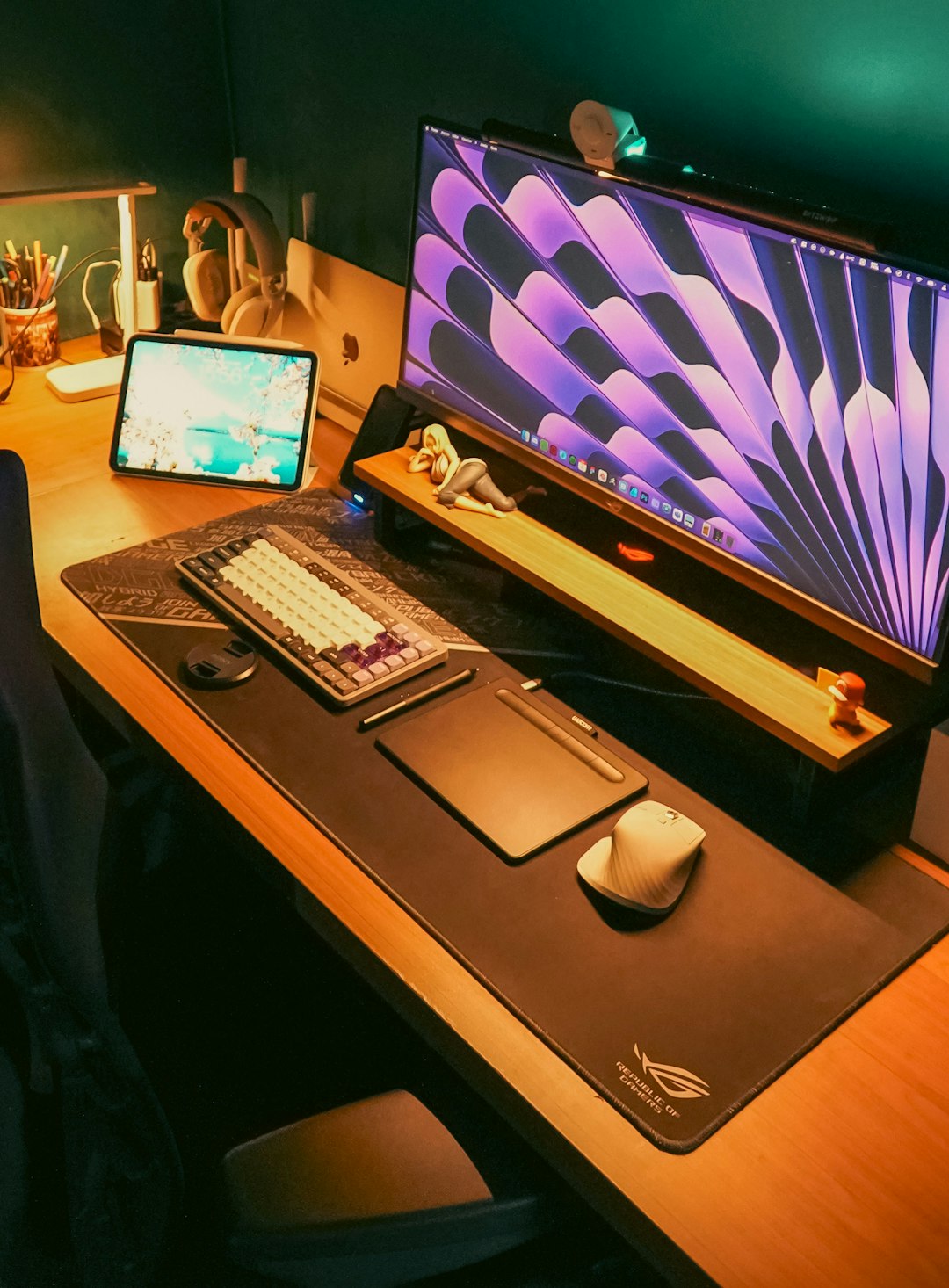
Ensuring updated graphics drivers and a stable internet connection also significantly improves overall performance.
Step 2: Choose a Compatible VR Headset
Several VR headsets support PCVR. Beginners often choose among:
- Meta Quest 2 or Quest 3 (via Link cable or Air Link)
- Valve Index
- HTC Vive series
- HP Reverb G2
Standalone Meta Quest devices are especially popular due to their flexibility. They can function independently but also connect to a PC using:
- USB-C Link cable (wired connection)
- Air Link or Virtual Desktop (wireless connection)
Wired connections generally offer more stability, while wireless setups offer greater freedom of movement.
Step 3: Install Required Software
Once the hardware is ready, the next step involves installing the necessary software platforms.
1. Install Steam and SteamVR
Most PCVR users run VRChat through Steam.
- Download and install Steam
- Create or log in to a Steam account
- Search for and install SteamVR
- Download VRChat from the Steam store
2. Install Headset-Specific Software
Depending on the headset, additional software may be required:
- Meta Quest: Install the Meta Quest PC app
- Valve Index / HTC Vive: SteamVR handles setup
- Windows Mixed Reality headsets: Install Mixed Reality Portal
After installation, connect the headset and follow on-screen instructions to complete firmware updates and room setup.
Step 4: Connect and Configure the Headset
Connecting the headset differs slightly based on whether the setup is wired or wireless.
Wired Setup (Recommended for Beginners)
- Plug the headset into the PC using the recommended cable.
- Connect any required power adapters.
- Launch the headset software.
- Open SteamVR to confirm everything is recognized.
Wireless Setup
- Ensure PC is connected via Ethernet for stability.
- Connect headset to a strong 5 GHz Wi-Fi network.
- Enable Air Link or wireless streaming software.
- Launch SteamVR from inside the headset.
After connection, users must complete room-scale configuration or choose a stationary boundary. This ensures accurate tracking and safety.
Step 5: Launch VRChat in VR Mode
Once SteamVR is running and the headset displays the virtual dashboard:
- Open Steam
- Select VRChat
- Click “Play”
- Choose Launch in VR Mode
The game should appear directly in the headset. If it launches in desktop mode instead, verify that SteamVR is running before starting VRChat.
Step 6: Adjust VRChat Settings for Performance
VRChat can be demanding, especially in populated worlds. Beginners should fine-tune settings to balance visuals and smooth gameplay.
Recommended In-Game Adjustments:
- Lower graphics quality if experiencing frame drops
- Enable safety settings for avatars
- Limit maximum dynamic bones
- Disable unnecessary particle effects
SteamVR also offers a resolution scaling setting. Reducing render resolution slightly can dramatically improve frame rate.
Image not found in postmetaMaintaining stable performance above 72–90 FPS (depending on headset) helps prevent motion sickness and ensures smoother interactions.
Step 7: Optimize Tracking and Audio
Accurate tracking greatly enhances immersion.
Tracking Tips:
- Ensure base stations (if used) are positioned diagonally across the room
- Keep the play area free of reflective surfaces
- Maintain proper lighting for inside-out tracking headsets
Audio Setup:
- Select the headset microphone in VRChat settings
- Adjust microphone sensitivity
- Use headphones to reduce echo
Clear communication is essential in VRChat’s social environments.
Common Beginner Mistakes to Avoid
- Skipping driver updates – outdated GPU drivers cause crashes.
- Ignoring overheating – ensure proper PC ventilation.
- Overloading avatars – highly complex avatars reduce performance.
- Weak Wi-Fi for wireless VR – leads to latency and stuttering.
Addressing these early prevents many frustrating issues.
Advantages of PCVR Over Standalone VRChat
Though standalone VRChat is convenient, PCVR offers:
- Access to PC-only avatars and worlds
- Advanced shaders and materials
- Full-body tracking compatibility
- Better physics and lighting effects
For users interested in avatar creation, world building, or high-quality social experiences, PCVR is the superior option.
Troubleshooting Basic Issues
Problem: Headset not detected
Solution: Check cables, update firmware, restart SteamVR.
Problem: VRChat running in desktop mode
Solution: Launch SteamVR first before starting the game.
Problem: Low FPS in crowded worlds
Solution: Disable avatar features or reduce graphics settings.
Problem: Audio not working
Solution: Manually set headset as default input/output device in Windows.
Final Thoughts
Setting up PCVR for VRChat may initially appear complex, but breaking it into manageable steps makes the process straightforward. With a capable PC, a compatible headset, and properly configured software, beginners can unlock the full potential of VRChat’s immersive and social environment. Careful optimization ensures smooth performance, while the enhanced visuals and functionality elevate the experience far beyond desktop mode.
For those willing to invest a little extra time in setup, PCVR opens the door to a richer, more interactive virtual world.
Frequently Asked Questions (FAQ)
1. Does VRChat require a high-end gaming PC?
While it does not require the most expensive hardware, a dedicated GPU and at least 16 GB of RAM are highly recommended for smooth gameplay, especially in crowded areas.
2. Can a Meta Quest headset be used for PCVR?
Yes. Meta Quest 2 and 3 can connect to a PC using a Link cable or Air Link, allowing users to access the full PCVR version of VRChat.
3. Is wireless PCVR good for beginners?
Wireless PCVR works well if the user has a strong 5 GHz Wi-Fi network and a wired Ethernet connection to the PC. Otherwise, a wired setup is more stable.
4. Why does VRChat lag in busy worlds?
Lag usually occurs due to complex avatars, excessive particle effects, or hardware limitations. Lowering graphical settings typically improves performance.
5. Do you need Steam to play PCVR VRChat?
Most users run VRChat through Steam and SteamVR. While alternative platforms exist, Steam remains the most common and beginner-friendly method.
6. Can full-body tracking be used with PCVR?
Yes. PCVR supports full-body tracking systems such as additional trackers, which are not supported on standalone VRChat versions.
7. How long does the setup process take?
For beginners, the entire process typically takes between 30 minutes and 1 hour, depending on hardware setup and software downloads.