
In today’s digital age, children are increasingly exposed to smartphones and tablets from a very young age. While these devices can be powerful educational tools, they also pose challenges when it comes to keeping kids safe and focused during screen time. One of the most common concerns for parents is how to prevent kids from accidentally exiting apps or accessing inappropriate content. Learning how to lock the screen for kids while using a phone or tablet can transform screen time into a secure and stress-free experience.
TL;DR (Too Long; Didn’t Read)
Locking the screen on a phone or tablet ensures children only access content meant for them. Both Android and iOS have built-in parental controls like Screen Pinning (Android) and Guided Access (iOS) that effectively limit device usage. Third-party apps and kid-friendly settings are also available to enhance control. Setting these up requires a few steps but delivers peace of mind for parents.
Understanding the Importance of Screen Locking for Kids
Allowing kids to use a mobile device without limits can result in unintentional interruptions, accidental purchases, or even exposure to inappropriate material. Screen locking goes beyond just keeping the screen on—it means restricting what the child can do on the device during a session.
For example, toddlers watching cartoons on YouTube can accidentally click on unrelated or harmful videos if the screen isn’t locked properly. A good screen-locking setup can also prevent them from calling random contacts, deleting apps, or changing your settings.

Methods for Locking the Screen on Android Devices
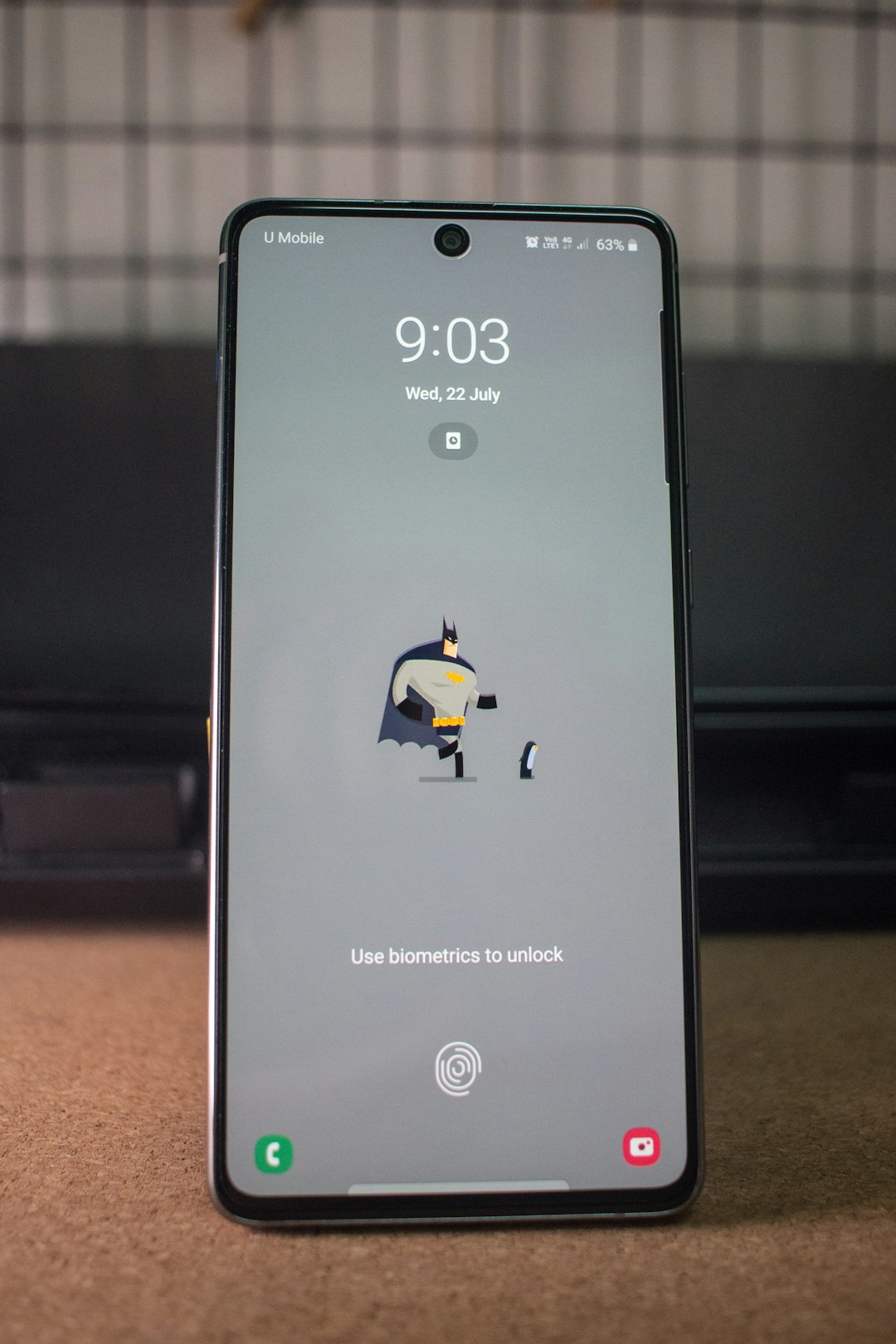
Android devices vary in how features are implemented depending on the manufacturer and Android version. However, one commonly available feature is Screen Pinning, which helps lock the device to a single app.
How to Set Up Screen Pinning on Android:
- Go to Settings → scroll down to Security (or Security & Location).
- Find and tap on Screen Pinning.
- Turn it On and enable the setting that asks for a PIN or pattern to unpin.
- Open the app you want your child to use.
- Tap the Overview/Recent Apps button and swipe up on the app card.
- Tap the pin icon at the bottom right of the app card.
Once pinned, the device will only allow access to that specific app. To exit, you’ll need to press the back and overview buttons together and enter your PIN or unlock pattern.
Kid Mode and Third-Party Apps
Some Android manufacturers like Samsung and Huawei offer a built-in Kids Mode. You can enable this to completely control what apps the child can use, establish usage time, and block settings and calls. Additionally, apps like Google Family Link, Kid’s Place, and Norton Family offer advanced features for monitoring and restricting use.
Screen Locking Features for iOS Devices
Apple’s ecosystem emphasizes privacy and child safety, and offers a powerful feature called Guided Access. This feature limits your device to a single app and allows you to control which features are accessible.
How to Set Up Guided Access on iOS:
- Open Settings → go to Accessibility.
- Scroll down and tap Guided Access.
- Enable the feature and set a passcode or Face ID to end sessions.
- Open the app you want your child to use.
- Triple-click the side/home button.
- Tap Start to begin the session.
To exit, you just triple-click the button again and enter your passcode or enable Face ID. You can also disable screen touches, motion sensors, or areas of the screen by adjusting options before starting Guided Access.
Use Screen Time for Additional Controls
Another built-in iOS tool is Screen Time, which allows you to monitor kids’ usage, restrict apps, set time limits, and block websites.
Best Practices for Locking a Device for Kids
- Use a Child Profile: Devices like Amazon Fire Tablets offer a dedicated child profile so children can only access pre-approved apps, videos, and websites.
- Disable App Installations: Prevent kids from downloading new apps by turning off the app store or requiring a password for every download.
- Adjust Notification Settings: Disable pop-up notifications that may distract or confuse younger kids.
- Enable Content Restrictions: Filter web content, block inappropriate media, and choose age-appropriate apps and games.
- Test Your Setup: Always test your screen-lock solution yourself before letting your child use the device!
When and Why to Use Third-Party Apps
While iOS and Android systems offer decent basic controls, third-party parental control apps can give you even more flexibility. For instance:
- Kid’s Place: Offers app launch restrictions, time limits, and child-safe interfaces.
- Google Family Link: Best for monitoring screen usage, managing digital rules, and policing screen time remotely.
- Net Nanny: Allows detailed web filtering and real-time alerts for unsafe content.
- Norton Family: Excellent for monitoring children’s overall online activity and alerting parents to unsafe behavior.
Third-party apps are ideal when you want extra customization or need remote control over devices that children use regularly. Many of these apps offer free and premium tiers depending on the level of surveillance and control required.
Common Mistakes to Avoid
- Not using a passcode: Always protect your lock settings with a PIN, passcode, or facial recognition to prevent tampering.
- Forgetting to test parental controls: Before handing the device to your child, test the setup to ensure settings are functioning as intended.
- Leaving access to notification bar: Some kids can gain access to the home screen through notifications—be sure these are disabled.
- Overlooking app permissions: Restrict camera, location, and microphone permissions for added privacy protection.
Conclusion
Ensuring kids have a safe and focused digital experience starts with learning how to effectively lock the screen on phones and tablets. With features like Screen Pinning on Android and Guided Access on iOS, combined with third-party app support and additional parental controls, parents can confidently hand over devices without worrying about what their children might click on. A little time spent configuring these options can result in safer, smarter screen time for the whole family.
FAQ: Locking the Screen for Kids on Mobile Devices
-
Q: Can I lock the screen to a single app on both Android and iPhone?
A: Yes. Use Screen Pinning on Android and Guided Access on iPhone to limit use to a single app. -
Q: What happens if my child exits the locked app?
A: They will be prompted to enter a passcode or use biometric recognition before exiting. -
Q: Are there any devices designed specifically for children?
A: Yes, options like Amazon’s Fire HD Kids Edition come with built-in parental controls and safe content libraries. -
Q: Can I block certain websites and apps completely?
A: Absolutely. Use tools like iOS Screen Time or third-party apps such as Net Nanny or Norton Family for deeper filtering. -
Q: Is it necessary to buy paid apps for screen locking?
A: Not necessarily. Most basic locking functionality can be achieved with built-in features, but paid apps offer advanced controls for heavy users.