
Steam is the go-to platform for millions of gamers around the globe, connecting players to their favorite games with ease. However, even the most reliable apps occasionally run into issues. One such hiccup is the frustrating Steam Error Code E20, a connectivity issue that often leaves users scratching their heads. Fortunately, resolving this error is entirely feasible if you know what steps to follow.
TL;DR (Too Long; Didn’t Read)
The Steam Error Code E20 usually relates to problems with network configurations, software conflicts, or corrupted client files. To fix it, you can start by restarting Steam and verifying network connections. If that doesn’t work, updating your software, resetting network settings, or reinstalling Steam usually does the trick. Follow the step-by-step guide below for a methodical and reliable fix.
What Is Steam Error Code E20?
Error Code E20 typically appears when the Steam client encounters an issue connecting to the internet or accessing the Steam servers. This could happen due to:
- Firewall or antivirus interference
- Corrupted Steam files
- Outdated app versions
- Issues with your network configuration
- Temporary server-side problems
This error is most commonly seen when launching the client or logging into your Steam account. It halts your ability to enjoy your games, making a quick fix essential.
Step-by-Step Guide to Fix Steam Error Code E20
Step 1: Restart Steam and Your PC
It may sound like a cliché, but sometimes the simplest solution is the most effective. Restarting both the client and your computer can clear temporary system glitches and free up locked resources.
- Exit Steam completely by right-clicking it in the system tray and selecting Exit.
- Reboot your computer.
- Launch Steam again and see if the error persists.
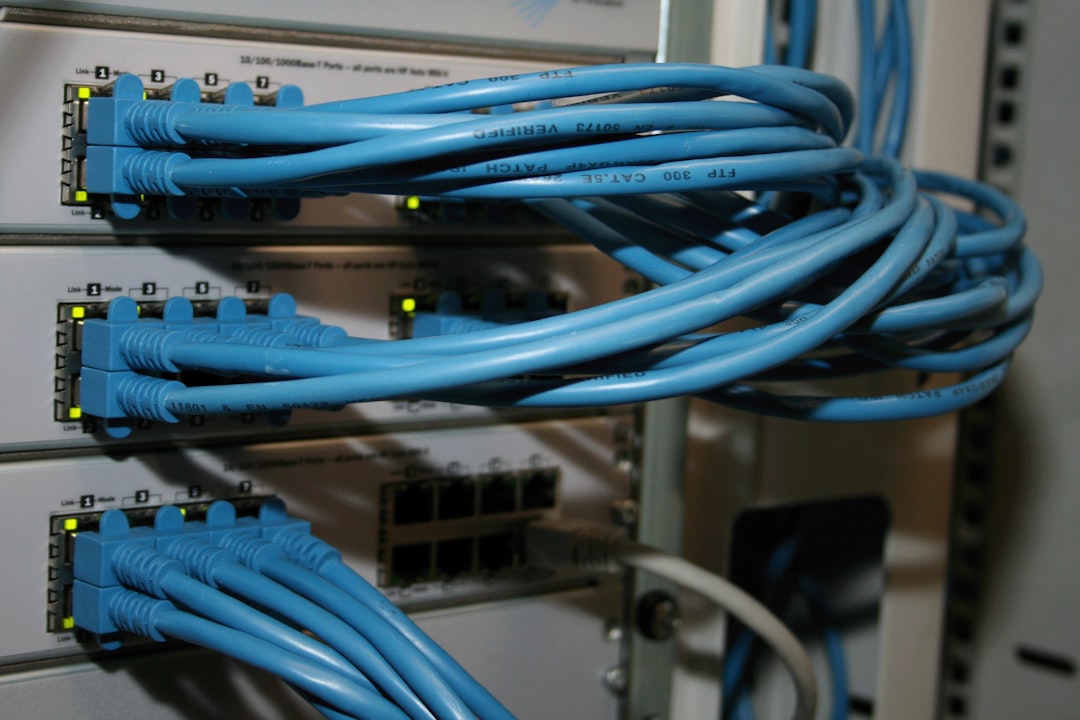
Step 2: Check Your Internet Connection
A faulty or unstable network connection can trigger E20. Ensure you’re connected to the internet and that the connection is stable.
- Try accessing other websites to verify general connectivity.
- Use a wired connection instead of Wi-Fi, if possible.
- Restart your modem and router to refresh the connection.
Step 3: Run Steam as Administrator
Running Steam with administrative privileges can bypass certain access restrictions that may be causing the error.
- Right-click on the Steam shortcut on your desktop or Start menu.
- Select Run as administrator.
- If prompted by User Account Control (UAC), click Yes.
Doing this grants Steam the necessary permissions to run effectively, especially when modifying files or accessing network resources.
Step 4: Disable Firewall/Antivirus Temporarily
Your security software might be blocking Steam’s connection to its servers. Disabling your firewall and antivirus just long enough to see if the problem resolves can point out the culprit.
- Disable your antivirus software temporarily.
- Turn off the Windows firewall — go to Control Panel > System and Security > Windows Defender Firewall.
- Attempt to run Steam after disabling them.
Important: Re-enable your antivirus and firewall immediately if they are not the cause, to keep your PC protected.
Step 5: Clear the Steam Download Cache
Corrupt or excessive cache data can interfere with how Steam functions. Clearing your download cache is easy and often helps.
- Open Steam.
- Click Steam > Settings.
- Go to the Downloads section and click on Clear Download Cache.
Steam will prompt you to log back in, so keep your credentials handy.
Step 6: Update Steam and Windows
Outdated software can create compatibility issues and errors like E20. Ensure both your operating system and Steam client are current.
- For Windows: Go to Settings > Update & Security > Windows Update.
- For Steam: Steam usually updates automatically at launch, but you can manually check by going to Steam > Check for Steam Client Updates.

Step 7: Reset Network Settings
If none of the above works, resetting your network settings to their default state could restore connectivity for Steam.
Open the Command Prompt as Administrator and enter the following commands one by one:
netsh winsock reset
netsh int ip reset
ipconfig /release
ipconfig /renew
ipconfig /flushdns
Restart your system after executing these commands.
Step 8: Reinstall Steam
If all else fails, a clean reinstall of Steam can often eliminate deep-rooted configuration or installation issues.
- Backup your game files (found in Steam > SteamApps > common).
- Uninstall Steam via Control Panel > Programs & Features.
- Restart your computer.
- Download the latest version of Steam from the official website.
- Install and restore your game files.
Bonus Tips to Prevent Error E20 in the Future
Once resolved, you can take a few preventative steps to avoid facing this issue again:
- Keep your software (both Steam and Windows) updated regularly.
- Add Steam to your firewall and antivirus whitelist.
- Avoid using multiple VPNs or proxies that can conflict with Steam networking.
- Regularly clear your Steam cache every couple of months.
When Should You Contact Steam Support?
If you’ve tried every step and continue to experience Error Code E20, it might be time to tag in the pros. Visit the Steam Support page and file a ticket describing your issue in detail. Include system information, steps you’ve already tried, and any recent changes to your setup.
Final Thoughts
Although Steam Error Code E20 can be disruptive, it’s rarely unsolvable. With a little patience and the steps listed above, you can troubleshoot and resolve the issue yourself — no tech guru badge required. Keep your Steam client healthy by maintaining updates, clearing cache, and ensuring stable network conditions, and your gaming sessions should continue smoothly and error-free.
Happy gaming!