
Modern navigation relies heavily on GPS technology, especially with apps like Google Maps leading the way. Whether navigating unfamiliar city streets or exploring backcountry trails, Google Maps is a trusted companion. However, it can occasionally falter, particularly in remote or mountainous areas, due to a phenomenon called GPS drift. This results in inaccurate location tracking, leading to confusion or even danger in extreme cases.
TL;DR: Google Maps GPS drift happens due to weak signals, terrain interference, or hardware limitations. To correct it, try calibrating your phone’s compass, enabling high-accuracy mode, clearing cache, or downloading offline maps. External GPS devices and location apps can also help improve positioning accuracy in remote areas. Staying prepared with manual navigation skills is also valuable in off-the-grid locations.
What is GPS Drift?
GPS drift occurs when a device’s reported location jumps or wanders even when you’re stationary, primarily caused by inconsistencies in the reception of satellite signals. Tree cover, mountains, buildings, cloud cover, or interference from other electronics can all contribute to this issue.
While this might not be a major problem in urban environments with additional data like Wi-Fi signals to assist positioning, it becomes a serious concern in remote areas where satellite signals may be the only reference point.
Why GPS Drift Is More Common in Remote Areas
- Limited satellite visibility: Fewer unobstructed paths to multiple GPS satellites reduces accuracy.
- Weak cellular signal: Many GPS applications, including Google Maps, rely partially on cell networks to refine location accuracy.
- Interference from terrain: Hills, valleys, forests, and other topographical features can block or reflect signals.
- Lack of Wi-Fi network triangulation: In urban areas, Wi-Fi aids location precision. Remote areas usually lack this enhancement.
How to Correct Google Maps GPS Drift Issues
1. Enable High-Accuracy Mode on Android
On Android devices, ensure location settings are in High Accuracy mode:
- Go to Settings > Location.
- Tap on Location Mode or Location Services.
- Select High Accuracy. This uses GPS, Wi-Fi, Bluetooth, and cell towers to estimate your location with greater precision.
2. Calibrate Your Compass Regularly
A misaligned compass can affect your directional accuracy. Google Maps uses your phone’s compass to determine which way you’re facing. You can calibrate it manually:
- Open the Google Maps app.
- Tap the blue dot (your current location).
- Select Calibrate Compass, then follow the screen instructions (usually involves moving your phone in a figure-8 motion).
This alignment significantly improves location orientation, especially crucial while hiking or navigating forested trails.
3. Download Offline Maps in Advance
Relying on real-time map data over a weak or nonexistent signal poses challenges. Google Maps allows users to download maps for offline use:
- Open Google Maps and tap your profile icon.
- Select Offline Maps > Select Your Own Map.
- Drag and zoom to define the area and tap Download.
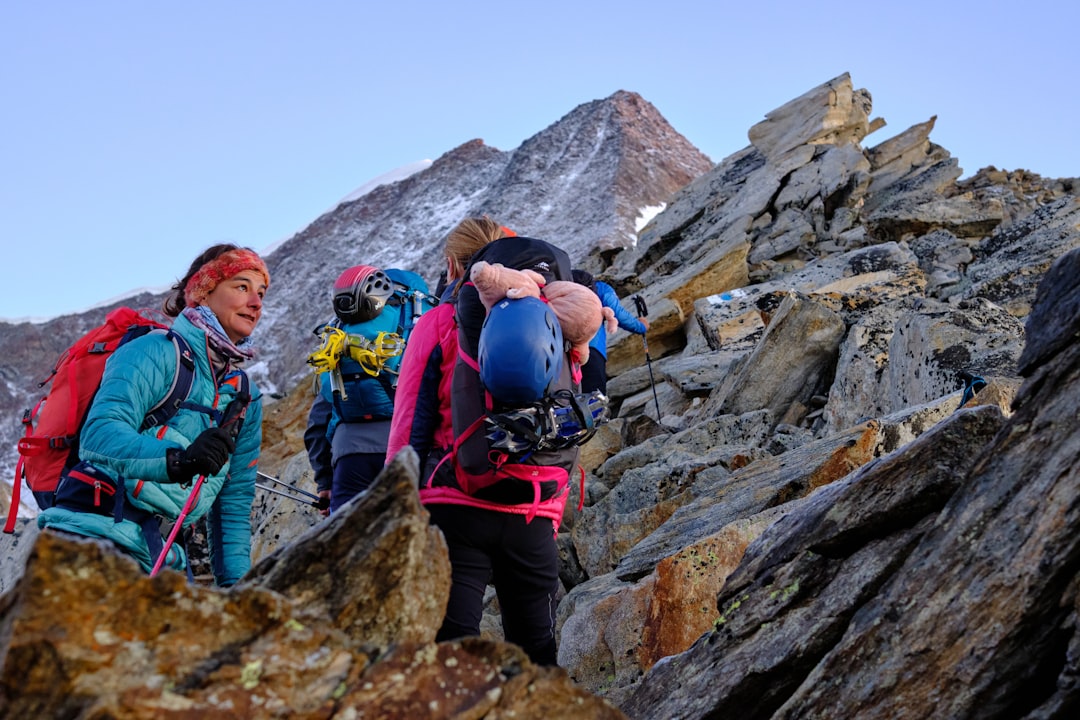
Offline maps work without cellular or Wi-Fi signals, using only GPS to determine location. While not perfect, this prevents the app from struggling to load new terrain or routes mid-navigation.
4. Clear Google Maps Cache/Data
Over time, cached data might become outdated or corrupted, leading to irregular behavior in apps like Google Maps. On Android devices:
- Go to Settings > Apps > Google Maps.
- Select Storage.
- Tap Clear Cache or Clear Data.
Note: Clearing data may delete saved locations. Make sure to back them up before proceeding.
5. Reboot Location Services and Restart the Phone
Sometimes, a simple reset can fix lingering GPS issues:
- Toggle Airplane Mode on and off to reset signal connections.
- Turn off GPS and then re-enable it after a few seconds.
- Restart your phone to flush temporary conflicts within system processes.
6. Use an External GPS Device
Smartphones are convenient but not always reliable in no-signal zones. For serious outdoor navigation, consider attaching an external GPS receiver like a Garmin GLO or using a smartwatch with GPS capabilities. These gadgets often provide better accuracy and durability during extended hikes or off-road trips.
7. Use Third-Party Navigation Apps with Enhanced GPS Tools
Apps like Gaia GPS, AllTrails, or BackCountry Navigator are built specifically for remote navigation and often perform more reliably off-grid than Google Maps. These apps typically include:
- Offline topographic maps
- Waypoint marking
- Trail overlays
- GPS coordinate exports
8. Keep Phone Software and GPS Apps Updated
App and OS updates often include performance improvements, bug fixes, and map enhancements. Ensure you’re on the latest version of both your device’s operating system and Google Maps before embarking on a trip.
9. Hold or Mount Your Device Correctly
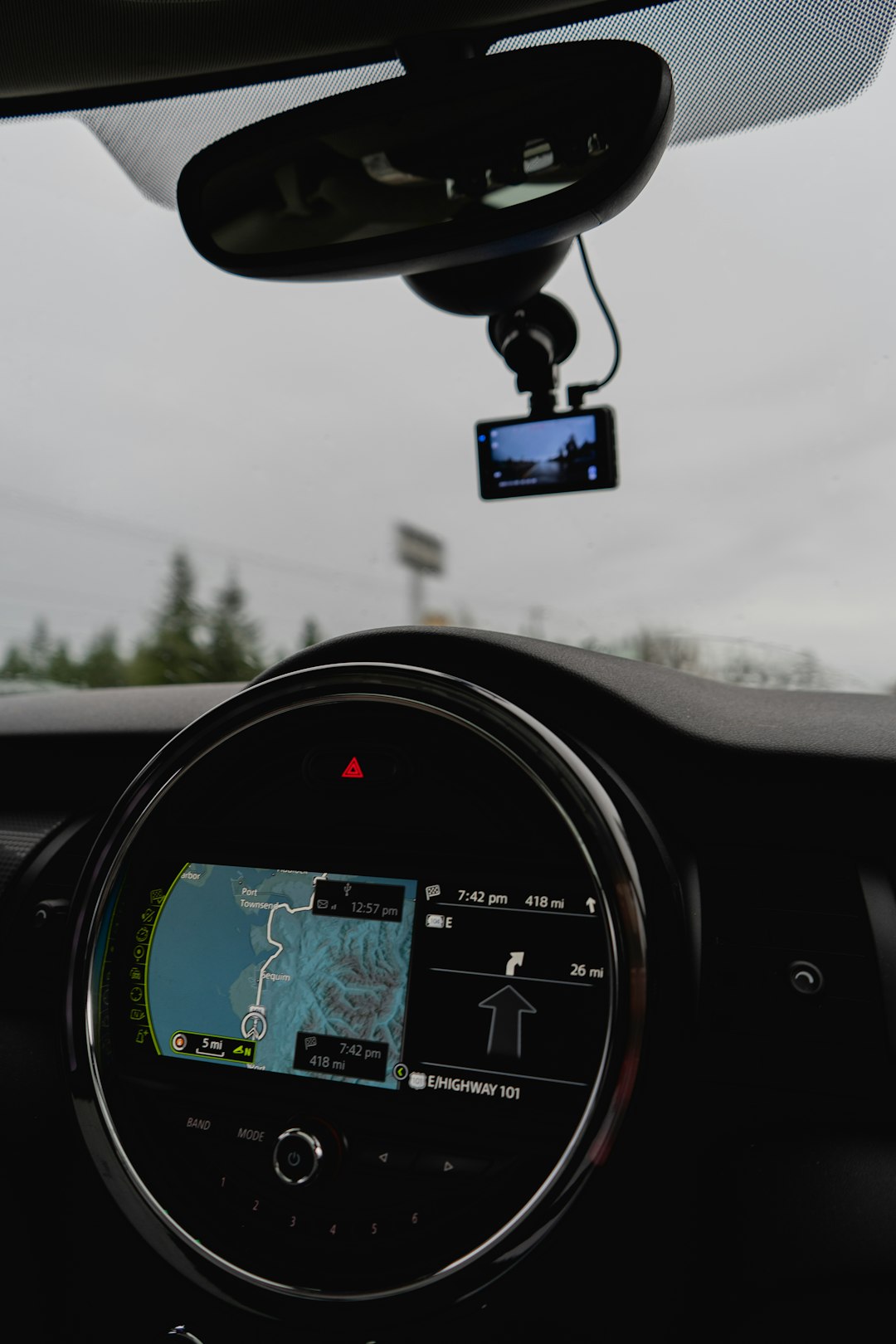
Some phone cases or mounts can interfere with GPS signal reception. If hiking, store your phone in an outside pocket or shoulder strap. When driving, ensure the device has a clear line of sight to the sky (such as on the dashboard).
10. Have a Backup Navigation Method
No matter the tech, always prepare for the worst-case scenario, especially on remote or critical routes. Keep a physical compass, paper map, and knowledge of basic navigation skills in your backpack or vehicle.
FAQs
Why does my location keep jumping on Google Maps when I’m hiking?
This is usually caused by GPS drift, resulting from irregular satellite signals caused by environmental interference, limited connectivity, or phone hardware limitations.
Is GPS drift dangerous?
It can be if you’re relying solely on digital navigation in remote areas. Incorrect positioning could lead you off-trail or in the wrong direction. Always have a backup navigation method.
Will downloading offline maps help reduce drift?
While it doesn’t eliminate drift, offline maps remove the need for a stable data connection, which helps Google Maps process location data more efficiently and reduces system lag.
Does using airplane mode affect GPS accuracy?
No, GPS works independently of cellular networks. In fact, enabling airplane mode while keeping GPS on can sometimes improve location accuracy by eliminating signal interference.
Can other apps interfere with GPS location?
Yes, apps that access location in the background (such as fitness or delivery apps) can sometimes conflict with navigation tools or slow down performance. Close unnecessary apps to reduce interference.
What’s the best app for hiking in remote locations?
For outdoor enthusiasts, Gaia GPS, AllTrails, and onX offer better terrain mapping, elevation tracking, and waypoint marking compared to Google Maps, which is more tailored for vehicle navigation and urban use.
Can GPS signals be boosted?
While signal boosters exist for cell reception, GPS signals can’t be amplified in the same way. However, external GPS receivers can significantly enhance accuracy in weak-signal areas.
Final Thoughts
GPS drift in Google Maps can turn a simple walk or drive into a confusing experience, especially in remote areas. Fortunately, with the right steps – from calibrating your compass to using dedicated navigation tools – users can significantly minimize these issues. Never underestimate the importance of preparation when venturing beyond well-trodden paths.