
Your computer should not feel like an obstacle between you and your work. When applications take too long to open, web pages freeze, the cursor lags, or the system takes several minutes to start, it is usually a sign that something is consuming resources, failing in the background, or overdue for maintenance. A slow computer can be caused by software, hardware, security issues, storage problems, or simply the natural effects of age and heavy use.
TLDR: A slow computer is most often caused by too many startup programs, limited memory, low storage space, outdated software, malware, or aging hardware. Start by restarting the system, checking storage, removing unnecessary startup apps, scanning for malware, and installing updates. If performance remains poor, you may need more RAM, a faster storage drive, or professional diagnosis for failing hardware.
1. Too Many Programs Running at Startup
One of the most common reasons a computer becomes slow is that too many programs launch automatically when the system starts. Many applications add themselves to the startup list during installation, including messaging tools, cloud storage services, game launchers, printer utilities, update assistants, and background monitoring tools. Individually, these programs may seem harmless, but together they can consume memory, processing power, and disk activity before you even begin working.
Solution: Review your startup programs and disable anything that does not need to run immediately. On Windows, open Task Manager, go to the Startup tab, and disable nonessential items. On macOS, open System Settings, go to Login Items, and remove unnecessary apps. Be cautious with security software, drivers, and system utilities, but feel free to disable items like chat apps, music services, and launchers if you do not use them every day.
- Keep enabled: antivirus tools, essential drivers, backup software you actively use.
- Consider disabling: game launchers, messaging apps, cloud tools, media apps, update checkers.
- Avoid guessing: if you do not recognize an item, search for its name before disabling it.

2. Not Enough RAM
RAM, or random access memory, is the short-term workspace your computer uses to run applications and keep information readily available. When your computer does not have enough RAM for the tasks you perform, it starts using the storage drive as temporary memory. This process is much slower and can cause freezing, stuttering, and delays when switching between programs.
This problem is especially common if you use modern web browsers with many tabs open, video editing software, design tools, accounting programs, virtual machines, or games. Even basic office work can feel sluggish on a computer with very limited memory, particularly if the operating system itself requires a large portion of available RAM.
Solution: Close unused applications and browser tabs first. Then check memory usage in Task Manager on Windows or Activity Monitor on macOS. If memory usage is consistently high, upgrading RAM may be one of the most effective improvements you can make. For many users, 8 GB is a minimum for basic use, while 16 GB or more is recommended for heavier multitasking or professional applications.
3. Low Storage Space
A computer needs free storage space to operate correctly. When your drive is nearly full, the operating system has less room for temporary files, updates, caches, and virtual memory. This can lead to slow startup times, failed updates, application errors, and poor overall responsiveness.
Low storage is often caused by large downloads, old installation files, duplicate photos, videos, unused applications, and temporary files that accumulate over time. In some cases, cloud sync folders may also store more local files than expected.
Solution: Aim to keep at least 15% to 20% of your main drive free. Delete files you no longer need, empty the recycle bin or trash, uninstall unused software, and move large media files to an external drive or trusted cloud storage. Use built-in tools such as Storage Sense on Windows or Storage Management on macOS to identify large files and clean temporary data safely.
4. Malware, Adware, or Unwanted Software
Malware can seriously reduce computer performance. Some malicious programs run silently in the background, recording activity, displaying ads, redirecting searches, mining cryptocurrency, or attempting to spread to other systems. Even less dangerous unwanted software, such as browser toolbars and adware, can make a computer feel slow and unstable.
Warning signs include unusual pop-ups, browser redirects, unknown programs, sudden homepage changes, high network activity, disabled security tools, or a computer fan that runs constantly when you are not doing anything demanding.
Solution: Run a full scan using reputable security software. On Windows, Microsoft Defender is built in and effective for many users, but a second scan with a trusted anti-malware tool may help detect unwanted programs. Avoid downloading “PC optimizer” tools from unknown websites, as many of them exaggerate problems or install additional unwanted software. If malware is found, follow the security software’s removal steps and change important passwords from a clean, trusted device.
5. Outdated Software and Operating System Issues
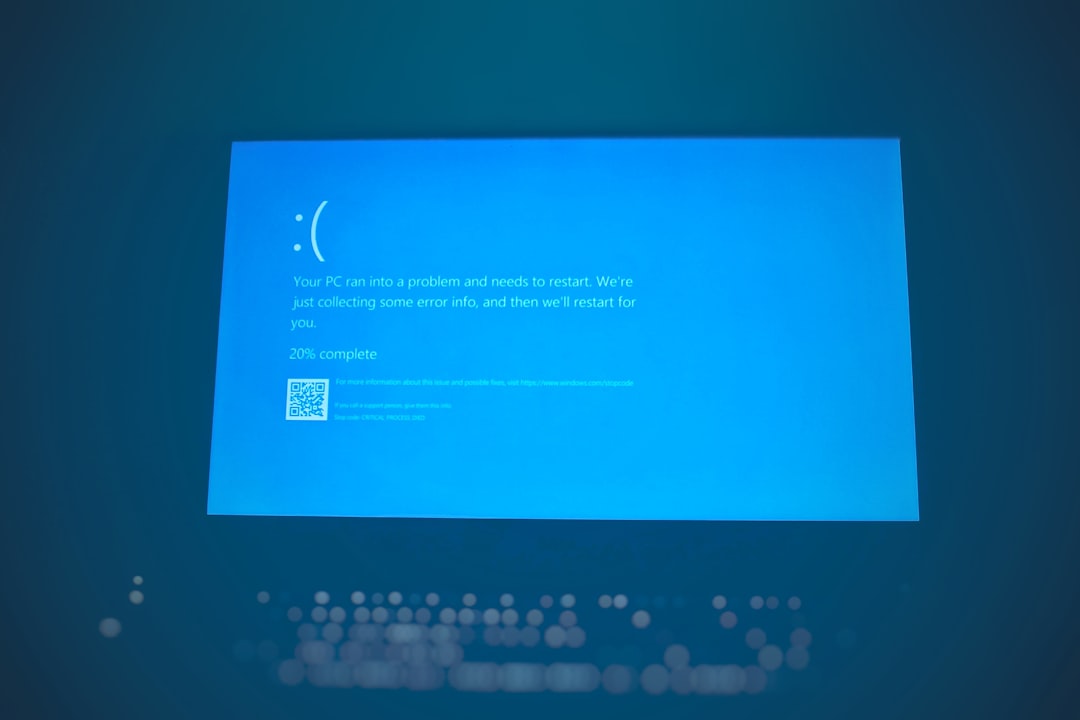
Updates are not only about new features. They often include performance improvements, bug fixes, driver updates, and security patches. An outdated operating system or old drivers can cause slowdowns, compatibility issues, crashes, and unreliable hardware behavior. For example, outdated graphics drivers may affect video playback and games, while outdated network drivers may cause slow internet performance.
Solution: Install operating system updates, application updates, and driver updates from official sources. Windows users should check Windows Update, while macOS users should check Software Update. If you use a laptop from a major manufacturer, the company may provide an official support tool for firmware and driver updates. Avoid random driver download websites, as they can be unsafe or provide incorrect files.
6. A Slow or Failing Hard Drive
If your computer still uses a traditional hard disk drive, or HDD, it may feel slow compared with modern systems that use solid-state drives, or SSDs. HDDs rely on spinning disks and mechanical parts, which makes them slower when opening programs, starting the system, or loading large files. As they age, they can also develop errors that cause severe delays, clicking sounds, file corruption, or startup failures.
Solution: If you have an HDD, upgrading to an SSD can dramatically improve performance. It often makes an older computer feel much faster without replacing the entire machine. If you suspect drive failure, back up your important files immediately and run a disk health check. Do not ignore repeated freezing, unusual noises, or warnings about disk errors, because a failing drive can result in permanent data loss.
7. Browser Overload
For many people, the web browser is the most used application on the computer. Modern browsers are powerful, but they can also consume large amounts of RAM and CPU power, especially when many tabs, extensions, and web apps are open. Streaming video, online documents, social media feeds, advertising scripts, and browser-based productivity tools can all place a heavy load on the system.
Solution: Close tabs you are not using, remove unnecessary extensions, clear the browser cache occasionally, and keep the browser updated. If a browser remains slow, test another reputable browser to see whether the issue is browser-specific. Extensions deserve particular attention: even a small number of poorly designed or suspicious extensions can reduce performance and create security risks.
8. Overheating and Poor Ventilation
Computers generate heat, and when they cannot cool themselves properly, they reduce performance to prevent damage. This is known as thermal throttling. Dust buildup, blocked vents, failing fans, dried thermal paste, or using a laptop on soft surfaces such as blankets can all lead to overheating.
Signs of overheating include loud fan noise, sudden slowdowns under load, unexpected shutdowns, hot surfaces, or performance that gets worse the longer the computer is on.
Solution: Make sure vents are not blocked and use the computer on a hard, flat surface. Carefully clean dust from vents and fans using compressed air, following the manufacturer’s guidance. For desktop computers, internal dust cleaning may help significantly. If temperatures remain high or the fan makes grinding noises, the cooling system may need professional service.
9. Too Many Background Services
Background services can be useful, but excessive background activity can make a computer feel slow. Cloud backup tools may sync thousands of files, indexing services may scan your drive, update tools may download large packages, and communication apps may run continuously. Sometimes these processes are temporary; other times they run constantly because of misconfiguration or software conflicts.
Solution: Check which processes are using the most CPU, memory, disk, and network resources. On Windows, use Task Manager. On macOS, use Activity Monitor. If one program repeatedly consumes excessive resources, update it, change its settings, reinstall it, or remove it if it is not necessary. For cloud sync tools, consider limiting which folders are stored locally.
10. Visual Effects and System Settings
Modern operating systems include animations, transparency effects, widgets, live wallpapers, and other visual features. These effects can make the system look polished, but they may reduce performance on older or lower-powered computers. While visual settings are rarely the only cause of severe slowdown, adjusting them can help improve responsiveness.
Solution: Reduce animations and visual effects. On Windows, search for Performance Options and choose settings that favor performance. On macOS, enable options such as Reduce motion and Reduce transparency in accessibility settings. These changes are safe and reversible.
11. Network Problems That Feel Like Computer Slowness
Sometimes the computer is not actually slow; the internet connection is. If web pages load slowly, video meetings freeze, downloads take too long, or cloud-based apps respond poorly, the issue may be your Wi-Fi, router, modem, or internet service provider rather than the computer itself.
Solution: Test performance with offline tasks, such as opening local files or applications. If those work normally, run an internet speed test, restart your router, move closer to the Wi-Fi access point, or try a wired Ethernet connection. Also check whether other devices on the same network are experiencing similar problems.
12. Aging Hardware
All computers eventually reach a point where the hardware struggles with modern software. Operating systems, web browsers, security tools, and productivity applications become more demanding over time. A machine that was fast several years ago may now be underpowered for current requirements, especially if it has limited RAM, an older processor, or a mechanical hard drive.
Solution: Consider practical upgrades before replacing the computer. An SSD upgrade and additional RAM can extend the life of many systems. However, if the processor is very old, the device cannot receive security updates, or repair costs are high, replacement may be the more reliable long-term choice.
A Sensible Troubleshooting Plan
When a computer is slow, avoid making random changes. A structured approach is safer and more effective:
- Restart the computer to clear temporary issues.
- Check storage space and remove unnecessary files.
- Review startup programs and disable nonessential items.
- Scan for malware with trusted security software.
- Install updates for the operating system, apps, and drivers.
- Monitor resource usage to identify problematic programs.
- Check hardware health, especially the storage drive and cooling system.
A slow computer is frustrating, but it is usually diagnosable. In many cases, performance improves after removing unnecessary startup items, freeing storage, updating software, and scanning for malware. If the system remains slow after basic maintenance, the cause may be insufficient RAM, an aging hard drive, overheating, or hardware that no longer meets your needs. Taking a careful, evidence-based approach will help you avoid unnecessary purchases and keep your computer running as reliably as possible.