
Apple Music is designed to provide a seamless listening experience across all your Apple devices. However, like any streaming service, it can occasionally display unexpected error messages. One of the more confusing issues users encounter is Apple Music Error 4007. This error typically interrupts playback, downloads, or syncing, leaving users unsure of the cause. Fortunately, Error 4007 is usually related to connectivity, account authentication, or software conflicts—and in most cases, it can be resolved with structured troubleshooting.
TLDR: Apple Music Error 4007 is usually caused by network instability, account authentication issues, outdated software, or device syncing problems. Start by checking your internet connection and Apple system status, then sign out and back into your Apple ID. If the error persists, update your device, reset network settings, or reinstall the Apple Music app. In most cases, these steps will restore normal functionality quickly.
What Is Apple Music Error 4007?
Error 4007 commonly appears when Apple Music fails to connect properly to Apple’s servers. It may occur while streaming songs, downloading playlists, or syncing your music library. Although Apple does not officially publish detailed error explanations, field reports and user experiences suggest the issue is typically linked to:
- Unstable or weak internet connection
- Temporary Apple server outages
- Expired or misconfigured Apple ID authentication
- Outdated iOS, macOS, or Apple Music app versions
- Corrupted app data or cached files
Understanding the root cause is critical before applying fixes. Below is a structured, step-by-step approach to resolving Apple Music Error 4007.
Step 1: Check Your Internet Connection
Because Apple Music is a cloud-based streaming service, a stable internet connection is essential. Even minor interruptions can trigger Error 4007.
Begin by verifying the following:
- Switch between Wi-Fi and cellular data to test stability.
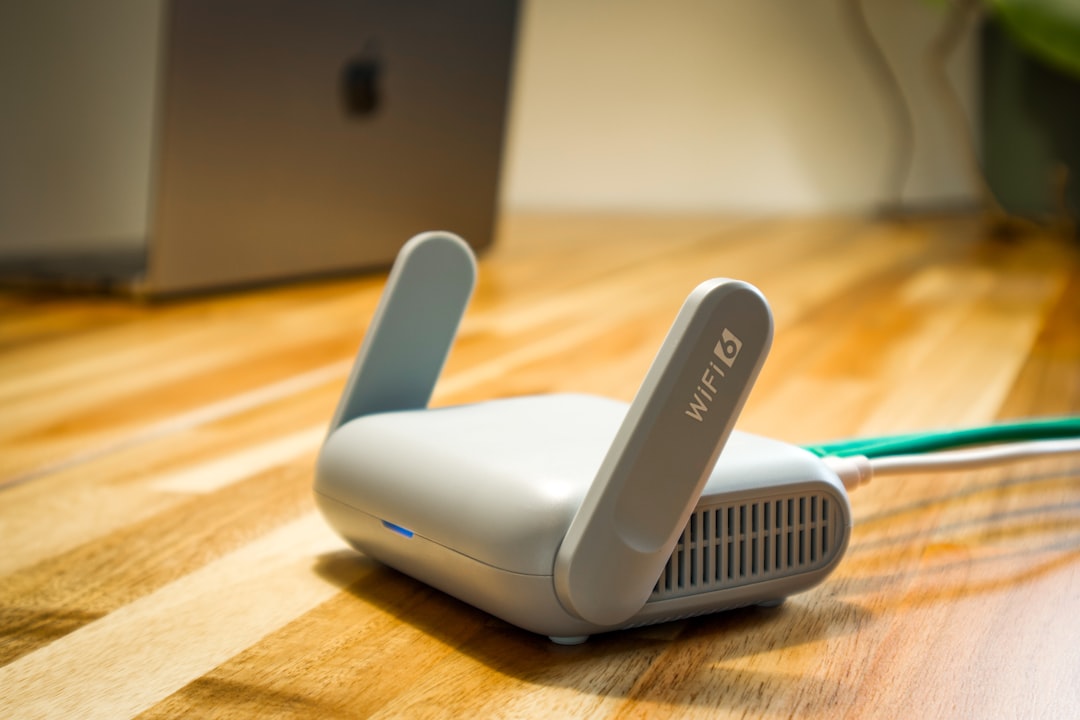
- Restart your router if you are on Wi-Fi.
- Run a quick speed test (minimum 5 Mbps recommended for streaming).
- Ensure Airplane Mode is turned off.
If using public Wi-Fi, note that restricted networks sometimes block certain connections required by Apple services.
If the connection appears stable but the error persists, proceed to the next step.
Step 2: Verify Apple System Status
Occasionally, the issue may not be on your side. Apple Music services can experience temporary downtime.
To check server availability:
- Visit Apple’s official System Status page.
- Locate Apple Music in the list.
- Ensure the status indicator is green.
If the service shows a yellow or red indicator, the only solution is to wait until Apple resolves the outage.
Step 3: Sign Out and Back Into Your Apple ID
Authentication errors are a frequent cause of Error 4007. Signing out and back into your Apple ID refreshes your account session and resolves token conflicts.
On iPhone or iPad:
- Open Settings.
- Tap your name at the top.
- Select Media & Purchases.
- Tap Sign Out.
- Restart your device.
- Sign back in.
On Mac:
- Open System Settings.
- Click your Apple ID.
- Sign out of Media & Purchases.
- Restart and log back in.
This step resolves many account-related streaming disruptions.
Step 4: Update iOS, macOS, or the Apple Music App
Running outdated software can create compatibility issues with Apple’s servers.
To check for updates on iPhone:
- Go to Settings > General > Software Update.
On Mac:
- Open System Settings > General > Software Update.
If you are using Apple Music on Windows, ensure both iTunes or Apple Music for Windows and your system updates are current.

After updating, restart your device before testing Apple Music again.
Step 5: Restart Your Device
While simple, restarting your device clears temporary memory glitches that could be interrupting Apple Music’s operation.
- Power off your device completely.
- Wait 30 seconds.
- Turn it back on.
This step refreshes background services and network modules.
Step 6: Reset Network Settings
If Error 4007 continues, your network settings may be corrupted.
Important: This will erase saved Wi-Fi passwords.
To reset network settings on iPhone:
- Go to Settings > General > Transfer or Reset iPhone.
- Select Reset.
- Tap Reset Network Settings.
Reconnect to Wi-Fi and test Apple Music again.
Step 7: Reinstall the Apple Music App
If app data or cache files are corrupted, reinstalling Apple Music can resolve the problem.
On iPhone:
- Tap and hold the Apple Music app.
- Select Remove App.
- Reinstall it from the App Store.
On Windows:
- Uninstall via Control Panel.
- Restart your PC.
- Download the latest version from Apple’s official site.
Step 8: Check Date and Time Settings
Authentication errors can occur if your device’s date and time are incorrect.
Ensure:
- Set Automatically is enabled in Date & Time settings.
- Your time zone matches your physical location.
Incorrect system clocks can interfere with secure server connections.
Step 9: Disable VPN or Firewall Temporarily
VPN services and aggressive firewalls occasionally block Apple Music traffic.
- Turn off any active VPN connection.
- Disable third-party firewall or antivirus temporarily.
- Test Apple Music functionality.
If this resolves the issue, configure your VPN to allow Apple Music traffic.
Comparison Chart: Common Causes and Fixes for Error 4007
| Cause | Symptoms | Recommended Fix | Difficulty Level |
|---|---|---|---|
| Unstable Internet | Buffering, playback stops | Switch networks or reset router | Easy |
| Apple Server Issue | Error persists across devices | Check System Status and wait | Easy |
| Account Authentication Error | Streaming unavailable, login prompts | Sign out and back in | Easy |
| Outdated Software | App crashes, compatibility warnings | Update device OS and app | Moderate |
| Corrupted Network Settings | Repeated connection failures | Reset Network Settings | Moderate |
| Corrupted App Data | Persistent error after updates | Reinstall Apple Music | Moderate |
When to Contact Apple Support
If none of the above solutions resolve Error 4007, it may indicate a deeper account or subscription issue. Contact Apple Support if:
- Your subscription appears active but streaming is blocked.
- The error occurs on multiple devices consistently.
- You recently changed payment methods or regions.
Prepare your Apple ID credentials and device details before contacting support for faster assistance.
Preventing Apple Music Error 4007 in the Future
To minimize the likelihood of recurrence:
- Keep your devices regularly updated.
- Avoid frequent Apple ID sign-ins across multiple untrusted devices.
- Maintain a stable Wi-Fi connection for streaming and downloads.
- Reboot devices occasionally to clear background processes.
Proactive maintenance significantly reduces unexpected streaming interruptions.
Final Thoughts
Apple Music Error 4007 can be disruptive, but in most instances, it is not serious. The issue typically stems from connectivity problems, minor authentication conflicts, or outdated system software. By following a systematic troubleshooting process—starting with network checks and progressing to account and app-level resets—you can resolve the error efficiently and restore uninterrupted music streaming.
Approach the process step by step, and avoid skipping foundational checks like connectivity and updates. With careful troubleshooting, Apple Music will return to normal operation in the vast majority of cases.