



Installing a new application should be a quick and seamless process, but for many users, it turns into a frustrating experience filled with obscure error codes and abrupt failures. Whether on Windows, macOS, Android, or iOS, software installation errors are surprisingly common and often prevent essential apps from running when they are needed most. Fortunately, most of these issues stem from a handful of well-known causes that can be resolved with the right approach.
TLDR: Most app installation failures are caused by insufficient storage space, corrupted files, incompatible system requirements, permission restrictions, or outdated operating systems. Identifying the exact cause is the first step toward resolving the issue effectively. By applying targeted solutions such as clearing storage, running system updates, verifying compatibility, fixing corrupted files, or adjusting user permissions, users can resolve the majority of installation problems quickly and safely.
This article explores the top five solutions to the most common software errors that prevent apps from installing and explains how to apply them effectively.
1. Freeing Up Storage Space
One of the most frequent reasons applications fail to install is insufficient storage space. Many devices require more space than the app’s listed size because temporary installation files and system buffers also consume memory during setup.
Common symptoms include:
- Error messages stating “Insufficient Storage” or “Not Enough Disk Space”
- Installations that stop midway without completion
- System slowdowns during download
How to fix it:
- Delete unused applications.
- Clear temporary files and cache data.
- Move large files (videos, images, backups) to cloud storage or external drives.
- Empty the recycle bin or trash folder.


On Windows devices, built-in tools like Disk Cleanup or Storage Sense can identify unnecessary files. On macOS, users can access the Storage Management panel to review large files. Mobile users should check storage settings and clear application caches if possible.
Maintaining at least 10–20% free space on a device significantly reduces installation and performance issues.
2. Checking System Requirements and Compatibility
Another common cause of installation failure is incompatibility between the application and the device’s operating system or hardware. Software developers specify minimum requirements for a reason—apps may simply not run on outdated systems.
Common issues include:
- “This app is not compatible with your device.”
- 32-bit vs 64-bit architecture conflicts
- Insufficient RAM or processor power
How to fix it:
- Verify the operating system version.
- Confirm whether the system is 32-bit or 64-bit before downloading.
- Compare hardware specs with the app’s minimum requirements.
- Download the correct version of the installer.


If the device does not meet minimum requirements, users may need to:
- Upgrade their operating system.
- Add more RAM if hardware allows.
- Use an older version of the app compatible with their system.
Ignoring compatibility details is one of the easiest mistakes to avoid, yet it remains a leading cause of failed installations.
3. Fixing Corrupted Installation Files
Corrupted or incomplete downloads frequently interrupt installation. This can happen due to unstable internet connections, interrupted downloads, or malware interference.
Warning signs include:
- “Installation package is corrupted.”
- Checksum or verification failures
- Unexpected installation termination
How to fix it:
- Delete the installer file completely.
- Re-download the file from the official website.
- Restart the device before reinstalling.
- Use antivirus software to scan the file.
When possible, users should verify digital signatures or checksums to confirm file integrity. Downloading software only from official or reputable sources significantly reduces the chance of corruption or malware infection.
4. Adjusting Permissions and Running as Administrator
Modern operating systems enforce strict security policies to protect users from malicious software. However, these security settings sometimes prevent legitimate applications from installing.
Common problems include:
- “Access Denied” errors
- Installers that require administrator privileges
- Security software blocking setup files
How to fix it:
- Right-click the installer and select Run as Administrator.
- Temporarily disable antivirus software (if safe and necessary).
- Adjust folder permissions in system settings.
- Ensure the user account has administrative rights.
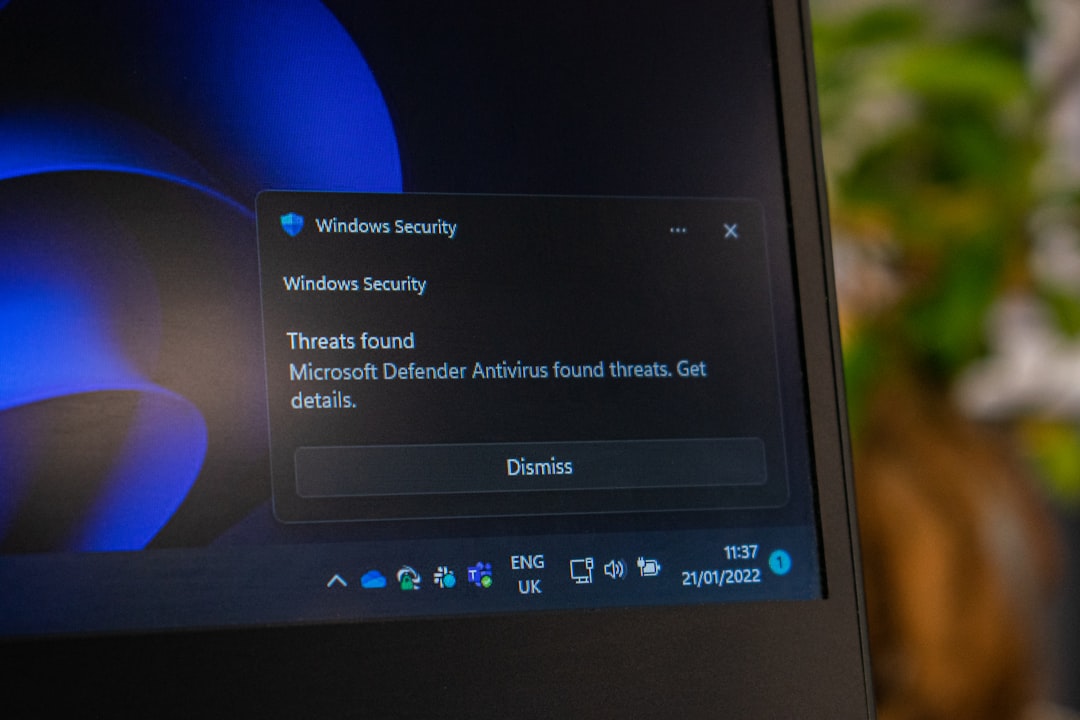
Mac users may need to adjust Security & Privacy settings to allow apps downloaded from verified developers. Smartphone users should ensure that app store permissions are not restricted by parental controls or enterprise policies.
It is important to re-enable security software after installation to maintain device protection.
5. Updating the Operating System
Outdated operating systems frequently cause installation failures. Developers optimize apps for current system versions, and older platforms may lack necessary frameworks or security certificates.
Common installation roadblocks:
- Unsupported OS version messages
- Missing system libraries
- Security certificate errors
How to fix it:
- Check for pending system updates.
- Install critical patches and service packs.
- Restart the device after updating.
- Attempt installation again.
System updates often resolve hidden bugs, refresh security certificates, and improve compatibility. Keeping devices updated is not only beneficial for installations but also crucial for cybersecurity and performance.
Comparison of Common Installation Errors and Solutions
| Error Cause | Typical Error Message | Primary Solution | Difficulty Level |
|---|---|---|---|
| Insufficient Storage | Not enough disk space | Delete files or free space | Easy |
| System Incompatibility | App not compatible | Upgrade system or download correct version | Medium |
| Corrupted Files | Installation package corrupted | Re-download installer | Easy |
| Permission Restrictions | Access denied | Run as administrator | Medium |
| Outdated OS | Unsupported version | Install system updates | Medium |
Preventative Measures to Avoid Future Installation Errors
While the above solutions solve most immediate problems, prevention is always more efficient than correction. Users can minimize installation issues by following a few best practices:
- Maintain Free Storage: Regularly review and remove unused files.
- Keep Systems Updated: Enable automatic updates when possible.
- Download From Trusted Sources: Avoid unofficial software repositories.
- Perform Routine Maintenance: Run disk checks and malware scans.
- Back Up Important Data: Protect against installation-related corruption.
Taking these proactive steps not only ensures smoother installations but also extends device lifespan and improves overall performance.
Frequently Asked Questions (FAQ)
1. Why does an app download but fail during installation?
This usually happens due to insufficient storage space, corrupted installation files, or permission restrictions. Re-downloading the installer and checking available storage often solves the issue.
2. How can someone tell if an installer file is corrupted?
Common indicators include error messages about corrupted packages, incomplete extraction, or checksum mismatches. Downloading the file again from the official source is typically effective.
3. Is it safe to disable antivirus software during installation?
Temporarily disabling antivirus software can resolve blocked installations, but it should only be done when installing trusted applications. Protection should be re-enabled immediately afterward.
4. What should be done if the device does not meet minimum system requirements?
Users may upgrade hardware, update the operating system, or look for an older compatible version of the software. In some cases, using a different device may be necessary.
5. Why do older operating systems prevent new apps from installing?
Older systems may lack required frameworks, security certificates, or drivers needed by modern applications. Updating the OS resolves most compatibility and security conflicts.
6. Can slow internet cause installation errors?
Yes. Slow or unstable internet connections can lead to incomplete downloads or corrupted installer files, resulting in failed installations.
Software installation errors can be intimidating, especially when accompanied by technical error codes and vague messages. However, most of these problems stem from a small number of predictable causes. By systematically checking storage space, compatibility, file integrity, permissions, and system updates, users can resolve installation failures efficiently and restore functionality with minimal disruption.