


YouTube buffering and lagging can turn a simple video into a frustrating stop-and-start experience. In many cases, the problem is not caused by YouTube itself, but by a combination of internet speed, device performance, browser settings, network congestion, or app issues. The good news is that most buffering problems can be diagnosed and fixed with a careful, step-by-step approach.
TLDR: YouTube buffering is usually caused by slow or unstable internet, overloaded devices, browser problems, or network congestion. Start by checking your internet speed, lowering video quality, restarting your router, and updating your browser or YouTube app. If the issue continues, clear cache, disable extensions, check background downloads, and test another device or network. For persistent lag, focus on improving Wi Fi strength, device performance, and router reliability.
Understand What Causes YouTube Buffering
Buffering happens when your device cannot download video data quickly enough to play it smoothly. YouTube tries to preload part of the video in advance, but if the connection drops, the device slows down, or the video quality is too high for your available bandwidth, playback may pause while more data loads.
Lagging is slightly different. A video may continue playing, but it can stutter, freeze briefly, lose audio sync, or respond slowly when you pause, skip, or change quality. This often points to device or browser performance issues, although internet instability can also be involved.
Common causes include:
- Slow internet speed, especially on high-resolution videos such as 1080p, 1440p, or 4K.
- Unstable Wi Fi caused by distance, walls, interference, or router problems.
- Too many devices using the same network at once.
- Browser cache or extensions interfering with playback.
- Outdated apps, browsers, or system software.
- Limited device resources, such as low memory, high CPU usage, or overheating.
- Temporary YouTube or ISP issues outside your control.

1. Check Your Internet Speed First
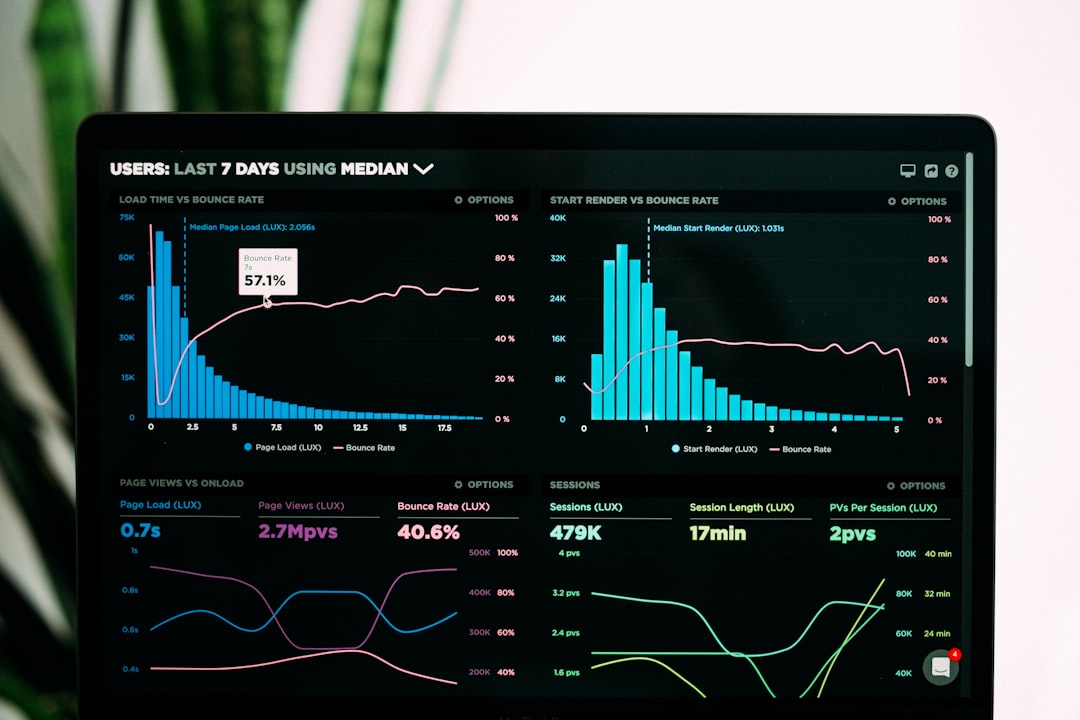
The first practical step is to test your internet speed. Use a reputable speed test service and run the test near the device where YouTube is buffering. Do not rely only on the speed promised by your internet plan; real-world performance often differs, especially over Wi Fi.
As a general guide, YouTube recommends approximately:
- 3 Mbps for 720p HD video.
- 5 Mbps for 1080p Full HD video.
- 20 Mbps or more for 4K video.
These numbers are minimum recommendations. If other people are streaming, gaming, uploading files, or joining video calls on the same connection, you may need significantly more bandwidth. Also pay attention to ping and jitter. A connection with decent download speed but high instability can still cause buffering.
If your speed test results are much lower than expected, restart your router and modem. Unplug them from power, wait at least 30 seconds, then plug them back in. After the connection fully returns, test again. This simple reset often clears temporary network faults.
2. Lower the Video Quality
If your internet connection is limited or unstable, lowering YouTube’s video quality can immediately improve playback. Click the gear icon on the video player, select Quality, and choose a lower resolution such as 720p or 480p. On mobile, tap the video, open the settings menu, and adjust quality from there.
YouTube often uses Auto quality by default. In theory, this setting adjusts resolution based on your connection. In practice, it may choose a quality that is too ambitious, especially when internet speed fluctuates. Manually selecting a lower quality can produce smoother playback.
If you are watching on mobile data, lowering video quality also helps reduce data usage and prevents throttling if your mobile provider slows speeds after a certain limit.
3. Improve Your Wi Fi Signal
Many YouTube buffering problems are caused by weak Wi Fi rather than a slow internet plan. A strong plan cannot perform well if the signal is poor between your router and device.
To improve Wi Fi performance:
- Move closer to the router and test YouTube again.
- Place the router in a central, elevated location, away from thick walls and metal objects.
- Keep the router away from microwaves, cordless phones, baby monitors, and other sources of interference.
- Use the 5 GHz band for faster speeds when you are close to the router.
- Use the 2.4 GHz band for better range if you are farther away.
- Consider a mesh Wi Fi system for larger homes or areas with weak signal.
For the most reliable connection, try using an Ethernet cable. Wired connections are usually faster and more stable than Wi Fi, especially for smart TVs, desktop computers, and gaming consoles.
4. Restart the YouTube App, Browser, and Device
Temporary software glitches can cause YouTube to lag, freeze, or buffer unnecessarily. Close the YouTube app completely and reopen it. If you are using a browser, close the YouTube tab and open a new one. If that does not help, restart the device.
This may sound basic, but it is a legitimate troubleshooting step. Restarting clears temporary memory, ends stuck background processes, and refreshes network connections. On older phones, tablets, computers, and smart TVs, this can make a noticeable difference.
5. Clear Cache and Cookies
Browsers and apps store temporary data to help pages load faster. Over time, this cache can become outdated or corrupted, causing playback issues. Clearing cache is especially useful if YouTube buffers in one browser but works normally elsewhere.
In most desktop browsers, you can clear cache through the privacy or history settings. Choose cached images and files, and if necessary, cookies. Be aware that clearing cookies may sign you out of websites.
On mobile devices, you can usually clear the YouTube app cache through system settings. On Android, go to Settings, select Apps, choose YouTube, and clear the cache. On iPhone and iPad, you may need to uninstall and reinstall the YouTube app to fully clear stored app data.
6. Disable Browser Extensions
Browser extensions can interfere with YouTube playback, particularly ad blockers, privacy tools, download managers, script blockers, and video enhancement extensions. Even reputable extensions can occasionally conflict with YouTube after a browser or platform update.
To test this, open YouTube in a private or incognito window. Most extensions are disabled there by default. If YouTube works smoothly in private mode, one of your extensions may be responsible.
Disable extensions one by one and test playback after each change. If you find the problematic extension, update it, adjust its settings, or remove it. For serious troubleshooting, keep your browser setup simple and avoid running multiple extensions that modify video playback at the same time.
7. Update Your Browser, App, and Operating System
YouTube relies on modern video codecs, browser capabilities, and security features. Outdated software can cause buffering, lag, black screens, audio problems, or poor performance.
Make sure the following are up to date:
- Your web browser, such as Chrome, Firefox, Edge, or Safari.
- The YouTube app on Android, iOS, smart TV, or streaming device.
- Your operating system, including Windows, macOS, Android, iOS, or TV firmware.
- Graphics drivers, especially on Windows computers.
If you are using an older smart TV or streaming box, YouTube performance may degrade over time as the app becomes more demanding. In that case, a dedicated modern streaming device may provide better results than relying on outdated built-in TV software.
8. Stop Background Downloads and Network Heavy Apps
YouTube may buffer if other applications are consuming bandwidth in the background. Cloud backups, game updates, operating system downloads, file syncing, torrents, and video calls can all affect streaming quality.
Check all devices connected to your network, not just the device playing YouTube. A laptop uploading large files or a console downloading a game update can reduce available bandwidth for everyone.
On your own device, close unnecessary apps and browser tabs. On Windows and macOS, check network activity through system monitoring tools. On phones, pause cloud photo backups or app updates if they are running while you stream.
9. Check Device Performance
If the internet connection is strong but YouTube still lags, the device may be struggling to decode and display the video. This is more common with older computers, budget phones, low-memory tablets, and aging smart TVs.
Signs of device-related lag include:
- The video stutters while the loading bar appears healthy.
- The device feels hot or slow while playing YouTube.
- Audio continues but video freezes.
- Other apps are also sluggish.
Close unnecessary programs, reduce the video resolution, and restart the device. On laptops and desktops, check CPU and memory usage. If usage is consistently high, YouTube may not be the only problem. Malware scans, startup app cleanup, driver updates, or hardware upgrades may be necessary.
10. Try a Different Browser or Device
A simple comparison test can save time. If YouTube buffers in one browser, try another. If it buffers on your laptop, test it on your phone using the same Wi Fi. If it works well on one device but not another, the issue is likely device-specific.
If YouTube buffers on every device connected to the same Wi Fi, the problem is more likely with your internet connection, router, or internet service provider. If YouTube works well on mobile data but not on home Wi Fi, that also points toward your home network.
11. Use YouTube’s “Stats for Nerds” Tool
YouTube includes a built-in diagnostic feature called Stats for nerds. On desktop, right-click the video and select it from the menu. On some mobile and TV apps, it may be available through settings.
This panel shows technical data such as connection speed, buffer health, dropped frames, and video resolution. If you see many dropped frames, the device may be struggling. If buffer health stays very low, the connection is not delivering video data fast enough. While this tool is technical, it can help identify whether the root cause is network speed or playback performance.
12. Check for ISP Throttling or Regional Problems
Sometimes the issue may involve your internet service provider. Network congestion is common during evening hours when many people are streaming. If YouTube buffers mainly at night but works well in the morning, congestion could be the reason.
You can test other streaming services to see whether they also buffer. If all streaming platforms are slow, your connection or ISP may be the issue. If only YouTube is affected, there may be a temporary routing problem between your ISP and YouTube’s servers.
If buffering continues for several days despite good local troubleshooting, contact your ISP. Provide specific details: speed test results, times of day, devices affected, and whether wired connections also have problems. Clear information makes it easier for support to investigate.
13. Consider Router Settings and Hardware
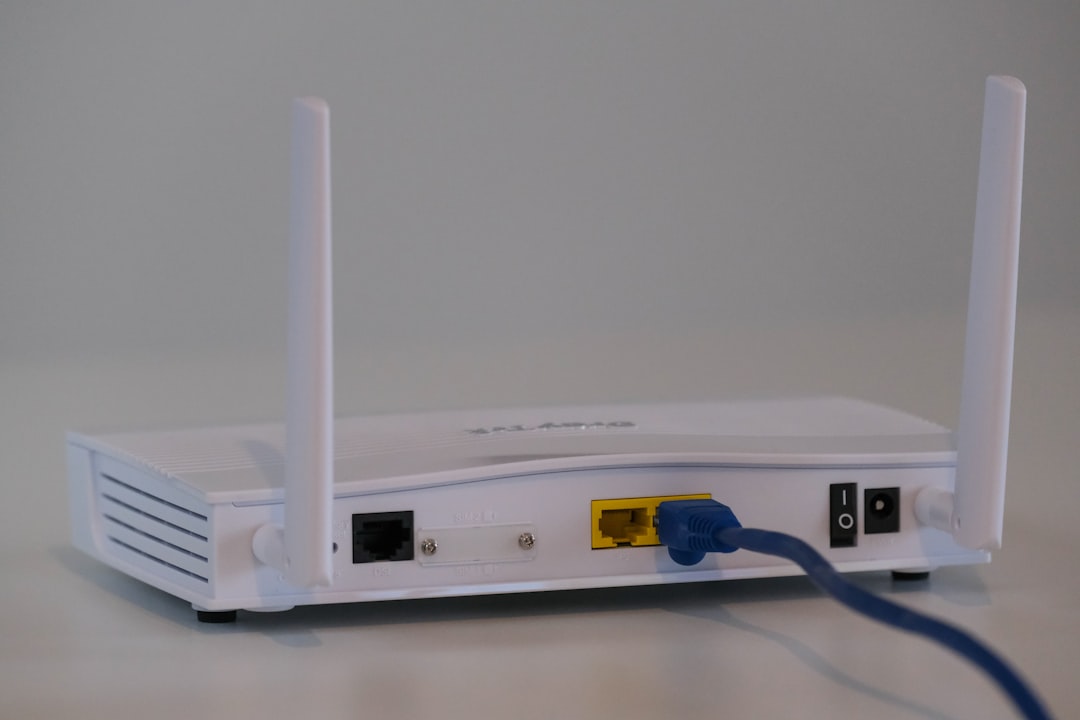
An old or overloaded router can cause buffering even if your internet plan is fast. Routers wear out, receive fewer updates over time, and may struggle with many connected devices.
Steps worth considering include:
- Update your router firmware from the manufacturer’s admin panel or app.
- Change Wi Fi channels if nearby networks are causing interference.
- Enable Quality of Service, or QoS, if your router supports it, to prioritize streaming traffic.
- Replace very old routers, especially if they do not support modern Wi Fi standards.
If you frequently stream in 4K, work from home, game online, and have many smart devices connected, investing in a better router can be a practical long-term fix.
Final Checklist for Fixing YouTube Buffering
If you want a reliable troubleshooting order, follow this checklist:
- Restart your router, modem, app, browser, and device.
- Run an internet speed test near the affected device.
- Lower YouTube video quality and test again.
- Move closer to the router or use Ethernet.
- Close background downloads and bandwidth-heavy apps.
- Clear browser or app cache.
- Disable extensions and test private browsing mode.
- Update software, apps, drivers, and router firmware.
- Test another browser, device, or network.
- Contact your ISP if the problem persists across all devices.
Most YouTube buffering and lagging issues can be fixed without advanced technical knowledge. The key is to separate internet problems from device problems. If videos buffer because data is arriving too slowly, focus on speed, Wi Fi strength, router quality, and network congestion. If videos stutter despite a healthy connection, focus on browser health, app updates, device resources, and software conflicts.
By working through the steps carefully, you can usually restore smooth YouTube playback and prevent the same issue from returning. A stable connection, updated software, and a well-maintained device are the foundation of reliable streaming.