



Apple Calendar is designed to offer seamless synchronization between iPhone, iPad, and Mac devices. However, many users occasionally encounter the frustrating message: “Server Responded With An Error.” This issue can prevent events from syncing, updating, or even displaying correctly across devices. While the error may seem complex, it typically stems from a few common causes—most of which can be resolved with straightforward troubleshooting steps.
TLDR: The “Server Responded With An Error” message in Apple Calendar is usually caused by connectivity issues, outdated software, incorrect account settings, or server-side problems. Fixes often include checking internet connectivity, updating iOS or macOS, re-adding calendar accounts, or resetting sync settings. In more persistent cases, signing out of iCloud or adjusting advanced account configurations may resolve the issue. Most users can restore full functionality in just a few simple steps.
What Causes the “Server Responded With An Error” Message?
Before fixing the issue, it helps to understand why it occurs. This error typically indicates a communication breakdown between your device and the calendar server. Some common causes include:
- Poor or unstable internet connection
- Outdated iOS or macOS software
- Incorrect calendar account settings
- Expired passwords or authentication errors
- Temporary Apple iCloud or third-party server outages
Whether the issue appears on an iPhone, iPad, or Mac, the troubleshooting steps are similar, but the process may vary slightly depending on the device.
1. Check Internet Connectivity
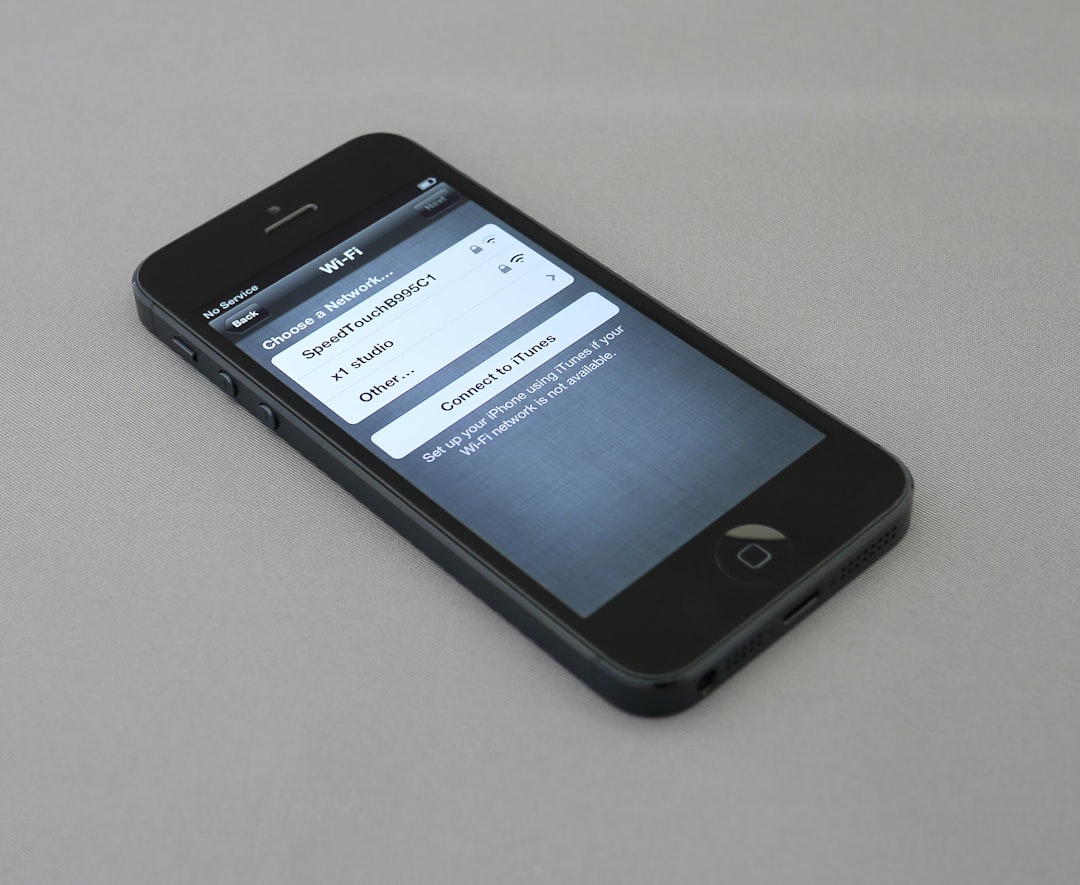
The most common reason for this error is a weak or unstable internet connection. Apple Calendar relies on iCloud or other online services such as Google or Exchange to sync events.
On iPhone:
- Open Settings and tap Wi-Fi.
- Ensure you are connected to a stable network.
- If problems persist, toggle Wi-Fi off and back on.
On Mac:
- Click the Wi-Fi icon in the menu bar.
- Confirm a stable connection.
- Restart the router if necessary.

Switching temporarily to cellular data (on iPhone) can also help determine whether the issue is network-related.
2. Check Apple System Status
Sometimes the problem is not on the user’s end. Apple’s iCloud services may experience temporary outages or maintenance interruptions. Users can check Apple’s System Status page to verify whether iCloud Calendar services are operational.
If a server outage is reported, the best solution is to wait until Apple resolves the issue.
3. Update iOS or macOS
Outdated software can cause compatibility problems between devices and Apple’s servers. Installing the latest updates often resolves synchronization errors.
To update on iPhone:
- Open Settings
- Tap General > Software Update
- Install any available updates
To update on Mac:
- Open System Settings (or System Preferences)
- Select General > Software Update
- Click Update Now if available
After updating, restart the device and check whether the Calendar syncs properly.
4. Restart the Calendar App
Occasionally, the issue may simply be a temporary app glitch.
On iPhone:
- Swipe up from the bottom (or double-press the Home button).
- Swipe away the Calendar app.
- Reopen it.
On Mac:
- Right-click the Calendar icon in the Dock.
- Select Quit.
- Reopen the app.
This simple step can refresh the connection to the server.
5. Remove and Re-Add the Calendar Account
Improper account authentication is a frequent cause of server errors. Removing and re-adding the account can resolve login or sync problems.
On iPhone:
- Go to Settings > Calendar > Accounts
- Select the affected account
- Tap Delete Account
- Restart the device
- Add the account again
On Mac:
- Open System Settings > Internet Accounts
- Select the calendar account
- Click Remove
- Restart and re-add the account

When re-adding the account, ensure that the correct login credentials are used, especially if the password was recently changed.
6. Check Date and Time Settings
Incorrect date and time configurations can interfere with secure server communication.
On iPhone:
- Open Settings > General > Date & Time
- Enable Set Automatically
On Mac:
- Open System Settings > General > Date & Time
- Turn on automatic time settings
Accurate time settings are especially important for SSL authentication with cloud services.
7. Reset Network Settings (iPhone Only)
If connectivity problems persist, resetting network settings may help.
- Go to Settings > General > Transfer or Reset iPhone
- Select Reset
- Tap Reset Network Settings
Note: This will remove saved Wi-Fi passwords and VPN settings.
8. Sign Out of iCloud and Sign Back In
For persistent syncing issues involving iCloud Calendar, signing out and back into iCloud can refresh account authentication.
On iPhone:
- Open Settings
- Tap your Apple ID at the top
- Select Sign Out
- Restart the device
- Sign back in
On Mac:
- Open System Settings
- Select your Apple ID
- Click Sign Out
- Restart and sign back in
This forces a full resynchronization of calendar data from Apple’s servers.
9. Check Advanced Account Settings
For users with Exchange or Google accounts, advanced configuration settings such as SSL, port numbers, or server addresses may need adjustment.
Users should verify:
- Correct incoming and outgoing server addresses
- SSL is enabled
- Username and password are accurate
- Port numbers match provider specifications
If unsure, contacting the email or calendar provider can clarify required server details.
10. Delete Calendar Cache Files (Mac Only)
On macOS, corrupted cache files may cause calendar synchronization errors.
- Open Finder
- Click Go > Go to Folder
- Enter:
~/Library/Calendars - Back up and delete cache-related files
- Restart the Mac
This step should only be performed by experienced users or after creating a backup.
When to Contact Apple Support
If none of the above solutions resolve the issue, the problem may relate to deeper account syncing conflicts or server-side inconsistencies. Contacting Apple Support can help diagnose account-specific problems that are not visible to users.
Before reaching out, users should note:
- Exact error message
- Device model and software version
- When the issue started
- Whether it affects multiple devices
Frequently Asked Questions (FAQ)
- Why does Apple Calendar say “Server Responded With An Error”?
This message usually indicates a communication problem between your device and the calendar server. It can result from poor internet connection, incorrect account settings, outdated software, or temporary server outages. - Does deleting my calendar account remove my events?
If the account is cloud-based (iCloud, Google, Exchange), your events remain on the server and will reappear once you re-add the account. However, locally stored calendars may be deleted permanently. - Can a password change cause this error?
Yes. If the calendar account password has been updated but not refreshed on the device, authentication will fail until the correct password is entered. - Why does the error appear on my Mac but not my iPhone?
Each device maintains its own sync session. One device may have outdated credentials or corrupted cache files while the other operates normally. - Will resetting network settings delete my data?
No personal data such as photos or apps will be removed. However, saved Wi-Fi networks and VPN settings will be erased. - How long should I wait if it is an Apple server outage?
Most outages are resolved within a few hours. Users can monitor Apple’s System Status page for real-time updates. - Is this error related to iCloud storage limits?
Generally, no. However, if iCloud storage is completely full, syncing problems may occur. Checking available storage is recommended.
By systematically working through these troubleshooting steps, most users can resolve the “Server Responded With An Error” issue without advanced technical assistance. In nearly all cases, the fix involves correcting connectivity, refreshing account authentication, or updating system software. With the Calendar app restored, users can once again rely on seamless event synchronization across all Apple devices.