



Nintendo Switch error code 2005-0003 can feel scary at first. Your game freezes. A message pops up. And suddenly, your fun is gone. But don’t panic. This error is common. And the good news? It is usually easy to fix.
TLDR: Error 2005-0003 usually means there is a problem with your microSD card or corrupted game data. Start by restarting your Switch and updating your system. Then check, remove, or replace the microSD card. If needed, redownload the game or format the card. Most users fix it without needing repairs.
What Is Nintendo Switch Error 2005-0003?
This error normally appears when your Switch has trouble reading data. Most of the time, the issue is linked to your microSD card. Sometimes it’s corrupted game data. Other times, the card is damaged or not compatible.
The message often shows up when:
- Launching a digital game
- Downloading new content
- Updating software
- Playing a game stored on microSD
Think of it like this. Your Switch is trying to read a book. But some pages are missing. Or torn. So it gives up.
Step 1: Restart Your Nintendo Switch
This sounds simple. But it works more often than you think.
Here is what to do:
- Hold the Power button for 3 seconds.
- Select Power Options.
- Choose Restart.
Do not just tap the power button. That only puts it to sleep. A full restart clears temporary glitches.
After restarting, try opening the game again. If the error is gone, great. If not, move to the next step.
Step 2: Check for System Updates
An outdated system can cause problems. Nintendo releases updates to fix bugs.
To check:
- Go to System Settings.
- Scroll down to System.
- Select System Update.
If there is an update, install it. Make sure your Switch stays connected to Wi-Fi. Once updated, test your game again.
Step 3: Inspect the microSD Card

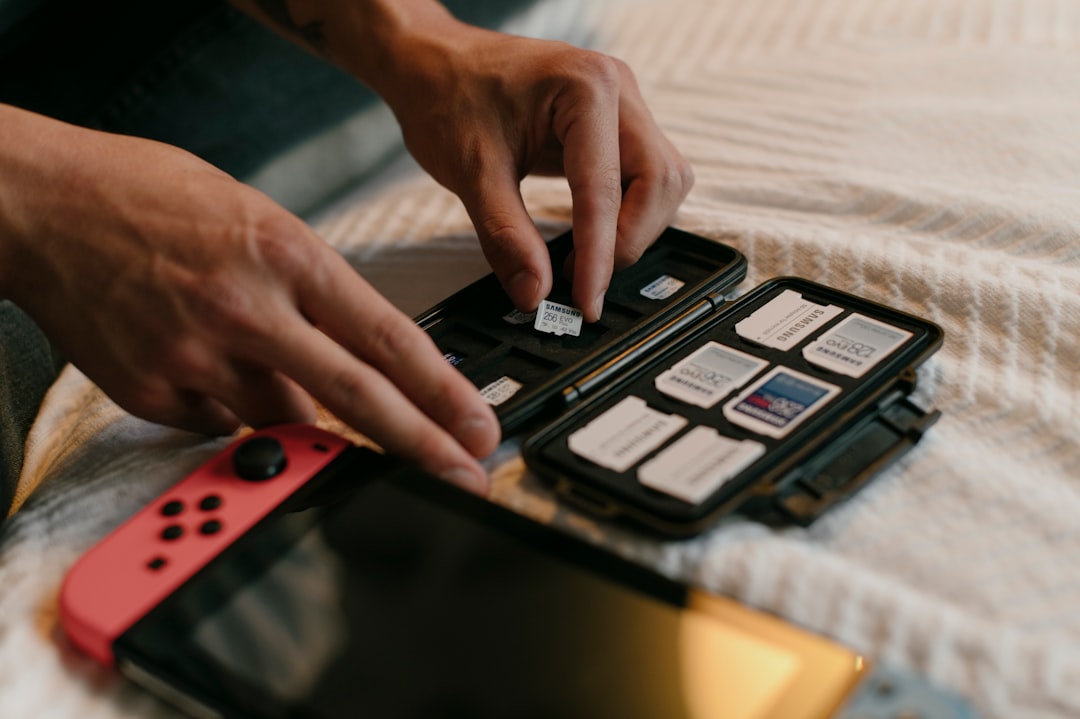
This is the most common cause. The microSD card stores download games, screenshots, and extra data. If it becomes corrupted, error 2005-0003 appears.
First, power off your Switch completely.
Now:
- Remove the microSD card.
- Check for dust or damage.
- Reinsert it carefully.
- Turn the Switch back on.
If the error disappears, the card may have just shifted slightly.
If the problem continues, test without the card:
- Power off again.
- Remove the microSD card.
- Turn the Switch on without it.
- Try launching a game stored on internal memory.
If everything works fine without the card, you have found the issue. The microSD card is likely corrupted or failing.
Step 4: Check for Corrupt Data
The Switch has a built-in tool to scan for bad data.
Here’s how:
- Go to System Settings.
- Select Data Management.
- Choose Manage Software.
- Select the game causing trouble.
- Choose Check for Corrupt Data.
The system will scan the game. This takes a few minutes.
If corrupted data is found, you will be asked to redownload the game. Do it. Your save data usually stays safe.
Step 5: Redownload the Game
Sometimes the game files themselves are damaged. Reinstalling is simple.
To delete the game:
- Go to System Settings.
- Select Data Management.
- Choose Manage Software.
- Pick the game.
- Select Delete Software.
Now go to the Nintendo eShop. Redownload the game from your profile.
Tip: Make sure you have a stable internet connection. Interrupted downloads can cause corruption again.
Step 6: Format the microSD Card
If the card is the problem, formatting may fix it. But be careful. This erases everything on the card.
Back up important screenshots first.
You can format the card using:
- A computer (recommended)
- The Nintendo Switch system settings
On a computer:
- Insert the microSD card into your PC or Mac.
- Open the disk management tool.
- Format it as exFAT.
Why exFAT? Because the Switch supports it for larger storage cards.
After formatting:
- Put the card back in your Switch.
- Redownload your games.
If the error returns even after formatting, the card may be dying.
Step 7: Try a Different microSD Card

MicroSD cards do not last forever. Cheap cards fail faster. Fake cards fail even faster.
Look for trusted brands like:
- SanDisk
- Samsung
- Kingston
Make sure the card:
- Is UHS-I compatible
- Has enough storage space
- Is purchased from a reliable store
Install the new card. Then test your games again.
If the error disappears, you solved it. Congratulations.
Step 8: Initialize the Console (Last Resort)
If nothing works, you can initialize the console. This means resetting it.
Warning: This can delete data if done incorrectly. Back up save data to Nintendo Switch Online cloud storage first.
To initialize:
- Go to System Settings.
- Scroll to System.
- Select Formatting Options.
- Choose Initialize Console.
After the reset, reinstall your games.
This step is rarely needed. Only use it if all other solutions fail.
When to Contact Nintendo Support

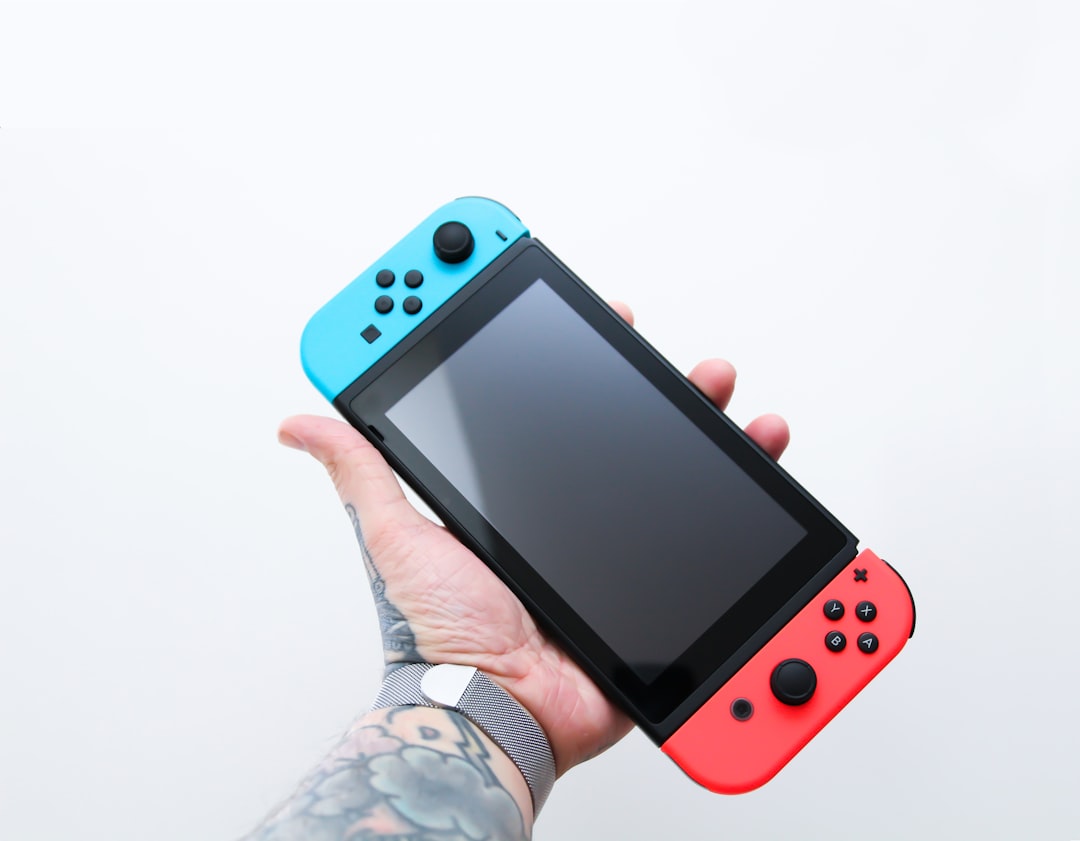
If you still see error 2005-0003, the issue may be hardware related.
Possible hardware causes:
- Faulty internal storage
- Damaged SD card reader
- Motherboard issues
Visit Nintendo’s official support website. Check if your console is under warranty. Repairs may be free if covered.
How to Prevent Error 2005-0003 in the Future
Prevention is easy. Follow these simple habits.
- Always power off before removing the microSD card.
- Do not interrupt downloads.
- Use high-quality memory cards.
- Keep your system updated.
- Avoid filling the card to 100% capacity.
Think of your microSD card like a tiny hard drive. Treat it gently.
Quick Troubleshooting Checklist
If you want a fast action plan, here it is:
- Restart the Switch.
- Update the system.
- Remove and reinsert the microSD card.
- Check for corrupt data.
- Redownload the problem game.
- Format or replace the microSD card.
- Contact Nintendo if needed.
Most users fix the error by step four.
Final Thoughts
Nintendo Switch error code 2005-0003 is annoying. But it is rarely serious. In most cases, your microSD card is the troublemaker. A quick restart or reinstall often fixes everything.
Take it step by step. Do not rush. And do not panic.
Before you know it, you will be back in your game. Coins collected. Boss defeated. Adventure resumed.
And that error screen? Just a small bump in the road.