


There’s nothing more frustrating than settling in for a movie night only to be greeted by a mysterious Netflix error code. One of the more confusing ones users encounter is NSEZ-503. If you’ve seen this message pop up on your screen, you’re not alone — and the good news is that it’s usually not a serious problem. In most cases, the error is connected to connectivity or browser-related issues that can be fixed in just a few steps.
TLDR: Netflix error NSEZ-503 is typically caused by connectivity problems, VPN interference, browser cache issues, or temporary Netflix server outages. You can fix it by checking your internet connection, disabling VPN or proxy services, clearing your browser cache and cookies, or restarting your device and router. In rare cases, switching browsers or updating your system may be necessary. Follow the four proven methods below to restore your streaming quickly.
What Is Netflix Error NSEZ-503?
The NSEZ-503 error usually appears with a message indicating that Netflix is having trouble reaching its servers. Unlike account-related or payment errors, this one is almost always connected to network communication problems.
This error commonly occurs when:
- Your internet connection is unstable or temporarily down
- A VPN or proxy is interfering with Netflix
- Your browser cache has become corrupted
- There’s a temporary Netflix server outage
Before you panic, remember: this error is generally easy to fix. Let’s break down the four most effective solutions.
Method 1: Check and Restart Your Internet Connection
The most frequent cause of Netflix error NSEZ-503 is a simple connectivity issue. Even if your Wi-Fi appears to be working, there may be packet loss, low bandwidth, or DNS issues interfering with Netflix’s servers.

Step-by-Step Fix:
- Test your internet speed using an online speed test tool.
- Make sure you have at least 5 Mbps for HD streaming (15 Mbps for 4K).
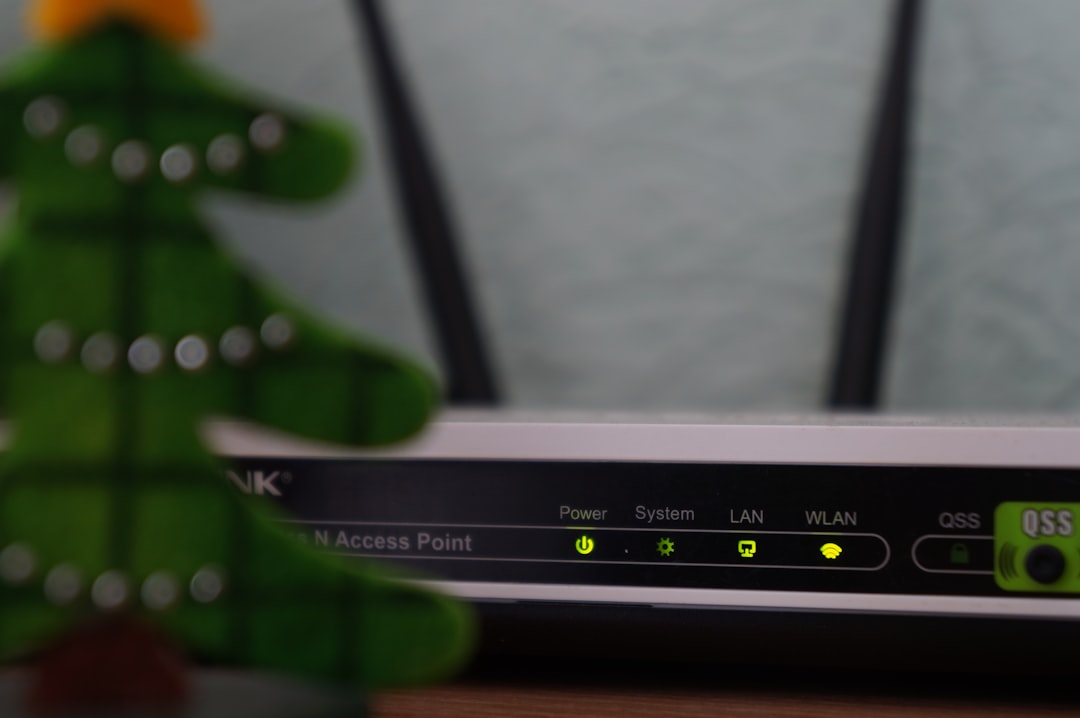
- Restart your router and modem:
- Unplug both devices
- Wait 30–60 seconds
- Plug them back in
- Wait for full reconnection
- Reload Netflix after your connection stabilizes.
Why This Works
Restarting your router clears temporary network glitches and refreshes your IP connection to your internet service provider. This resolves most NSEZ-503 errors instantly.
Pro Tip: If possible, switch from Wi-Fi to a wired Ethernet connection for more stable streaming.
Method 2: Disable VPN, Proxy, or Smart DNS Services
Netflix actively blocks many VPNs and proxy servers. If you’re using one, it may prevent your browser from properly communicating with Netflix’s servers, triggering the NSEZ-503 error.


How to Fix It:
- Turn off your VPN completely.
- Disable any proxy settings in your browser.
- If using Smart DNS, switch back to automatic DNS settings.
- Refresh Netflix.
How to Check Proxy Settings (Windows Example):
- Open Settings.
- Click Network & Internet.
- Select Proxy.
- Turn off “Use a proxy server.”
Mac users can check proxy settings under System Settings > Network > Advanced > Proxies.
Why This Works
Netflix’s security system blocks IP addresses it detects as VPN servers. When you disable the VPN, your real IP address connects directly, allowing streaming to resume.
If privacy is important to you, consider switching to a premium streaming-compatible VPN — but always test compatibility first.
Method 3: Clear Browser Cache and Cookies
Corrupted cache files can interfere with Netflix authentication sessions and streaming scripts. Over time, temporary files build up and sometimes conflict with updated website code.


Quick Fix Steps (Chrome Example):
- Open your browser.
- Press Ctrl + Shift + Delete (Windows) or Command + Shift + Delete (Mac).
- Select:
- Cookies and other site data
- Cached images and files
- Choose All time as the time range.
- Click Clear data.
- Restart the browser.
Why Clearing Cache Helps
Netflix relies on stored cookies to verify your session and region. If those cookies become outdated or corrupted, the communication between your browser and Netflix servers may fail — triggering NSEZ-503.
Alternative Fix: Try accessing Netflix in Incognito/Private Mode. If it works there, the issue is almost certainly cache-related.
Method 4: Restart Device or Switch Browser
Sometimes the issue isn’t your connection or VPN — it’s the device itself. Background apps, outdated browsers, or system glitches can interrupt streaming processes.
Steps to Try:
- Restart your computer, smart TV, or mobile device.
- Update your browser to the latest version.
- Switch to another browser (Chrome, Firefox, Edge, Safari).
- Ensure your operating system is updated.
Why This Works
Restarting your device clears temporary memory conflicts, stops stuck background processes, and resets system networking components. Switching browsers also eliminates extension conflicts that may interfere with Netflix.
Comparison Chart: 4 Ways to Fix Netflix Error NSEZ-503
| Method | Difficulty Level | Time Required | Best For | Success Rate |
|---|---|---|---|---|
| Restart Internet Connection | Easy | 5 minutes | Connectivity problems | Very High |
| Disable VPN or Proxy | Easy | 2 minutes | VPN-related errors | High |
| Clear Browser Cache | Moderate | 5 minutes | Browser-based issues | High |
| Restart Device / Switch Browser | Easy | 5–10 minutes | System or software glitches | Medium to High |
What If Netflix Servers Are Down?
While rare, the problem may not be on your end at all. Netflix occasionally experiences server outages.
How to Check:
- Visit Downdetector.
- Check Netflix’s official social media accounts.
- Ask friends if they’re experiencing the same issue.
If servers are down, there’s nothing to fix — you’ll simply need to wait until service is restored.
Advanced Troubleshooting (If Nothing Works)
If you’ve tried all four methods and still see NSEZ-503, consider these advanced options:
- Flush your DNS cache (using ipconfig /flushdns in Command Prompt).
- Change DNS servers to Google DNS (8.8.8.8 and 8.8.4.4).
- Temporarily disable firewall or antivirus software (for testing only).
- Contact your Internet Service Provider to check for routing issues.
These issues are uncommon but may affect certain network configurations.
How to Prevent NSEZ-503 in the Future
You can reduce the chances of encountering this error again by:
- Keeping your browser and operating system updated.
- Avoiding unreliable free VPN services.
- Restarting your router once every few weeks.
- Using wired Ethernet when possible.
- Regularly clearing browser junk files.
Preventative maintenance goes a long way in avoiding streaming interruptions.
Final Thoughts
Netflix error NSEZ-503 may look intimidating, but it’s usually a minor connectivity or configuration issue. In most cases, a quick router restart or VPN disable solves the problem immediately. If not, clearing your browser cache or rebooting your device should restore normal streaming access.
The key is to approach the issue methodically. Start with the simplest solutions first, then move toward more advanced troubleshooting only if necessary. Within minutes, you’ll likely be back to binge-watching your favorite shows without interruption.
Next time NSEZ-503 pops up, you won’t need to stress — you’ll already know exactly what to do.