



Running into the frustrating “An Error Occurred” message while using the E4MC mod can instantly ruin your gaming session. Whether you’re trying to join a friend’s world or host your own server without complicated port forwarding, this vague error can leave you confused and stuck. The good news? In most cases, the issue is completely fixable with a few targeted troubleshooting steps.
TL;DR: The “An Error Occurred” message in E4MC is usually caused by network issues, outdated mod versions, firewall restrictions, or mod conflicts. Start by updating E4MC and your game, then check your firewall and internet connection. Make sure all players are using matching versions and compatible loaders (Forge or Fabric). Reinstalling the mod or correcting Java settings often resolves deeper issues.
E4MC is a powerful tool that allows players to host temporary Minecraft servers directly from their singleplayer world, bypassing traditional port forwarding. While it’s incredibly convenient, it also relies heavily on proper configuration, network permissions, and version compatibility. In this guide, we’ll walk through why the error appears and how to fix it step by step.
What Causes the “An Error Occurred” Message in E4MC?
The problem with this error is that it’s intentionally broad. It doesn’t always tell you exactly what went wrong. However, in most cases, the cause falls into one of these categories:
- Outdated E4MC mod version
- Minecraft version mismatch
- Forge vs Fabric incompatibility
- Firewall or antivirus blocking connections
- Internet connectivity or NAT issues
- Java version problems
- Conflicts with other mods
Let’s break down each scenario and fix them one by one.
1. Update E4MC and Minecraft
The most common reason for the error is version incompatibility. If your E4MC version doesn’t match your Minecraft version, it may not initialize correctly.


How to Fix
- Open your mod manager (CurseForge, Prism Launcher, or vanilla launcher).
- Check your current Minecraft version.
- Download the exact E4MC version built for that Minecraft release.
- Replace the old .jar file inside your mods folder.
Important: If you’re playing with friends, everyone must use the same Minecraft and E4MC version. Even minor version differences can trigger connection failures.
2. Check Your Mod Loader (Forge or Fabric)
E4MC is released separately for Forge and Fabric. Installing the wrong one will immediately cause errors.
How to Confirm
- Open your launcher profile.
- Check whether it says Forge or Fabric.
- Verify that your E4MC file matches that loader.
Installing a Forge mod on a Fabric instance (or vice versa) will not work, even if the Minecraft version matches.
3. Allow E4MC Through Firewall and Antivirus
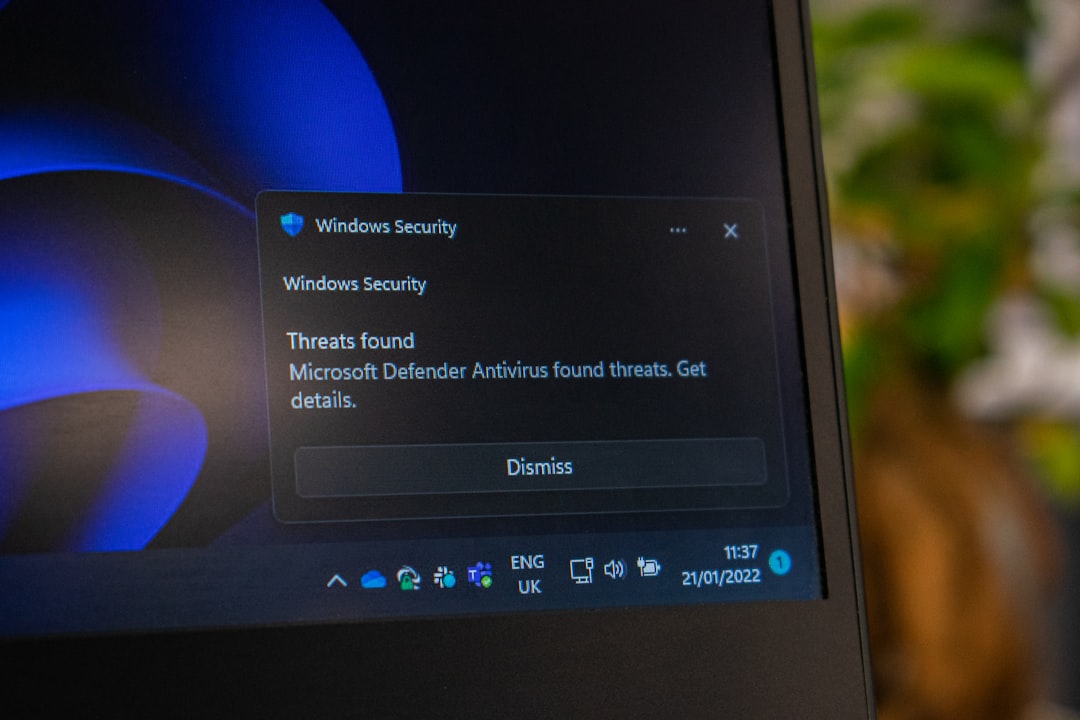
Because E4MC creates temporary server tunnels, your firewall may block it automatically. This is especially common on Windows systems.

How to Fix on Windows
- Press Windows + R, type control firewall.cpl, and hit Enter.
- Select Allow an app through Windows Defender Firewall.
- Find Java(TM) Platform SE Binary.
- Make sure both Private and Public boxes are checked.
If you use third-party antivirus software (like McAfee, Avast, or Norton), temporarily disable it and test again. If the error disappears, create an exception for Java.
4. Verify Your Internet Connection
E4MC relies on stable outbound internet connections. If your connection drops or uses strict NAT settings, it may block the tunnel from opening.
Quick Network Checklist
- Restart your router.
- Switch from Wi-Fi to Ethernet if possible.
- Disable VPN temporarily.
- Ask friends to test joining another E4MC server.
If your ISP uses Carrier-Grade NAT (CGNAT), you may experience recurring issues. In that case, contacting your ISP or using a different hosting method might be necessary.
5. Check for Mod Conflicts
Some mods modify networking features or world permissions, which can interfere with E4MC’s tunneling system.


How to Identify Conflicts
- Duplicate your mod profile.
- Remove half of the installed mods.
- Test E4MC again.
- Repeat until you identify the problematic mod.
This method (called the half-split method) helps isolate compatibility issues quickly.
6. Update or Reinstall Java
Minecraft heavily depends on Java, and outdated installations can break mod functionality.
How to Fix
- Download the latest Java version from the official website.
- Uninstall older Java builds.
- Restart your computer.
- Launch Minecraft again.
Most modern Minecraft versions work best with Java 17. Using Java 8 with newer versions may lead to crashes or hidden errors.
Tool Comparison: Managing Mods Efficiently
If you frequently experience errors, your launcher might be part of the problem. Here’s a comparison of popular Minecraft mod managers:
| Tool | Ease of Use | Automatic Updates | Conflict Detection | Best For |
|---|---|---|---|---|
| CurseForge | Very Easy | Yes | Basic | Beginners |
| Prism Launcher | Moderate | Manual Control | Advanced | Experienced Users |
| MultiMC | Moderate | Limited | Manual | Custom Pack Builders |
| Vanilla Launcher | Simple | No | None | Minimal Modding |
If you’re consistently troubleshooting mod errors, switching to Prism Launcher can provide better instance isolation and clearer logs.
7. Check Logs for Specific Errors
When the generic error appears, the real reason is often hidden in the logs.
How to Access Logs
- Open your Minecraft directory.
- Go to the logs folder.
- Open latest.log.
Look for red text or warnings mentioning:
- Failed to bind port
- Handshake exception
- Connection timed out
- Unsupported protocol
These terms can point directly to the root cause.
8. Reinstall E4MC Completely
If everything else fails, a clean reinstall often works.
Steps for a Clean Reinstall
- Delete E4MC from the mods folder.
- Launch Minecraft once without it.
- Close the game.
- Re-download E4MC from a trusted source.
- Install it fresh.
This clears corrupted configuration files and resets temporary cache data.
9. Hosting Best Practices to Avoid Future Errors
Once you’ve fixed the issue, follow these best practices to minimize future problems:
- Keep all mods updated.
- Avoid mixing large mod packs with experimental builds.
- Use Ethernet when hosting sessions.
- Test your world before inviting multiple players.
- Back up important saves regularly.
Consistency is the key to stable modded gameplay.
When to Seek Community Help
If none of these solutions work, it may be time to consult:
- The official E4MC GitHub issues page
- Modding Discord communities
- Reddit’s Minecraft modding forums
When asking for help, always include:
- Your Minecraft version
- Your mod loader (Forge or Fabric)
- Your E4MC version
- The relevant error log section
Providing these details dramatically increases your chances of receiving a fast solution.
Final Thoughts
The “An Error Occurred” message in E4MC can feel intimidating at first, but in reality, it’s usually caused by straightforward configuration problems. Whether it’s a mismatch between Minecraft and mod versions, firewall restrictions, or mod conflicts, the fix is often just a few steps away.
By systematically checking versions, loader compatibility, firewall permissions, Java updates, and mod conflicts, you can resolve the issue quickly and get back to enjoying multiplayer sessions without the headache of traditional server setup.
Remember: most E4MC problems aren’t catastrophic—they’re just technical details waiting to be adjusted. Once properly configured, E4MC remains one of the most convenient ways to share your Minecraft world instantly with friends.