



Switching computers, upgrading your OS, or resetting your system can feel like walking a digital tightrope — especially when it comes to your collection of purchased games and apps. You’ve spent significant time and money building your software library, and the last thing you want is to lose access or go through tedious reactivation processes. Fortunately, most modern platforms offer robust systems for license recovery and content migration — if you know how to use them.
TL;DR:
If you’re swapping PCs, reinstalling your OS, or doing a system reset, don’t worry — you won’t lose your purchased games and apps if you’ve linked them to digital accounts like Steam, Epic Games, Microsoft, or Apple. Use built-in backup tools, cloud syncing, and external storage to safeguard files and save time. Keep installation files, product keys, and login credentials handy. Most licensing is account-based today, not device-based, which makes transfers much easier.
Understanding How Licenses Work Today
Gone are the days where games and software were tied to a single machine through physical DRM discs or one-time activation keys. Today’s licenses are mostly account-bound, which means that if you bought something through a platform like Steam, Microsoft Store, or Apple App Store, your access goes wherever your login travels.
Here’s a quick look at how license management works on popular platforms:
- Steam, Epic Games, Origin: Licenses are tied to your account. Just log in on any machine, and you can re-download your purchases.
- Microsoft Store: Tied to your Microsoft account; once logged in on a new PC, your apps are available to reinstall.
- Apple App Store: Apps and games are connected to your Apple ID across iOS and macOS devices.
- GOG: Offers DRM-free downloads; you can back up installers and use them on any system without revalidation.
However, even if your license is safe, your save files and custom settings aren’t. And some non-mainstream apps may require manual license transfers. That’s why backing up strategically is still essential.
Step-by-Step: How to Backup and Transfer Without Losing Licenses
1. Link Every Purchase to a Central Account
Always buy apps and games through an account-based store — not third-party grey-market key sellers. This ensures you can:
- Download them again after system changes
- Maintain a purchase history
- Access cloud saves, where supported
Enable two-factor authentication and keep login credentials stored in a secure password manager in case access recovery is needed.
2. Backup Game Saves and App Settings
Backing up your game saves and app customizations is crucial, especially for non-cloud-supported titles. Many modern platforms support cloud syncing, but not all do. Here’s how you can cover yourself:
- Steam: Check if the game supports Steam Cloud under the Library view.
- GOG Galaxy: Has optional cloud sync for supported games.
- Manual Backup: Save files are usually located in
%AppData%,Documents, orSaved Gamesfolders. Back these up to external storage or cloud drives.

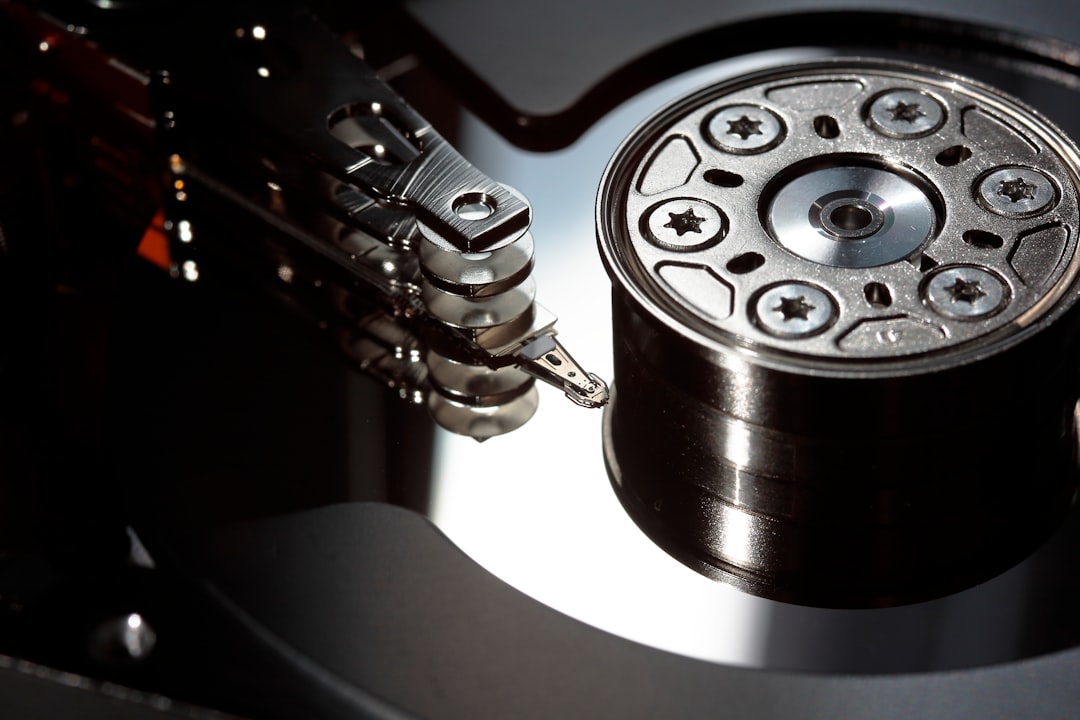
Additionally, apps like GameSave Manager or SyncToy can automate the backup process for a wide variety of games.
3. Use External Drives or Cloud Storage
For large games or software installations, redownloading after a system reset can be time-consuming. Consider backing them up locally:
- Steam: Use the built-in “Backup and Restore Games” feature under “Steam > Backup and Restore Games…”
- GOG: Download DRM-free installers to an external drive
- Installer Archives: For any software where you have the installation EXE or MSI file, keep it stored with the license key (if applicable)
Cloud-based services like OneDrive or Google Drive can also host these backups securely, but just make sure you respect licensing rules. Don’t try to run or share software outside the terms and conditions provided by the publishers.
4. Deauthorize Old Devices When Necessary
Some licensing models limit active devices. Before switching PCs or repartitioning your OS drive, check if your software requires deauthorization. This is especially important for proprietary apps like:
- Adobe Creative Cloud
- Microsoft Office
- iTunes and App Store content
In these cases, go into the software settings and sign out on the old machine to avoid triggering device limit errors when you install on the new one.
5. Prepare for a Smooth Transition
Before making any major system changes, take these precautions:
- Export activation keys: Especially for software that isn’t linked to a cloud account
- Backup user profiles and configurations for games, launchers, and major apps
- Write down credentials and ensure you have recovery emails or phone numbers set
- Document which software needs manual installation vs. those that will auto-recover


Once you restore your system or set up a new PC, log back into each respective platform (Steam, Epic, GOG, etc.), download any cloud saves, and import what you’ve backed up. Most games and apps will pick up right where you left off.
Common Issues and How to Avoid Them
Despite taking precautions, a few hiccups may still arise. Here’s how to handle them:
- “License not recognized” errors: Ensure you’ve logged in with the correct account. If issues persist, contact publisher support with your purchase receipt.
- Missing saves: Double-check your backup or look inside OneDrive if you had document syncing enabled — it sometimes populates those folders without your knowledge.
- Activation limits exceeded: Use the software’s official site or support channel to deactivate older devices.
- Unusual behavior after restoration: A full reinstall may clean up registry or compatibility problems that corrupted files can cause post-transfer.
What Not to Do
While it may be tempting to use third-party cloning tools or registry editors to bypass license reactivation, this is risky and often violates user agreements. Avoid:
- System cloning tools that copy drive sectors without updating system links
- Cracked launchers or unauthorized patches — they expose you to malware
- Sharing account credentials to avoid license limits, which can lead to bans
Always use the official migration or backup tools provided by publishers and platforms. They’re designed to protect both your access and your data.
Conclusion: Think Ahead, Backup Smart
Transferring your gaming and app life to a new machine doesn’t have to feel like digital surgery. With proper planning — backing up game saves, storing install files, and keeping your licenses linked to online accounts — you can make a reset or upgrade seamless and stress-free.
As licensing models evolve and cloud support becomes the norm, losing your digital purchases is becoming a thing of the past. Still, nothing beats a good backup. Take a few extra steps now, and future-you will thank you after your next system change or device upgrade.