



Retro gaming on modern Linux systems is no longer a niche hobby reserved for enthusiasts with advanced technical knowledge. Thanks to projects like EmuDeck and gaming-focused distributions such as Bazzite Linux, setting up a powerful emulation environment has become straightforward, stable, and highly customizable. This guide provides a comprehensive, step-by-step approach to installing EmuDeck on Bazzite Linux, ensuring you achieve optimal performance and long-term reliability.
TLDR: EmuDeck can be installed on Bazzite Linux with minimal manual configuration, leveraging Bazzite’s gaming optimizations and Steam integration. The process involves preparing your system, downloading the EmuDeck installer, selecting emulator configurations, and organizing your ROM library correctly. With proper setup and BIOS management, you can emulate multiple console generations smoothly. This guide walks you through every step to ensure a secure, clean, and professional installation.
Understanding Bazzite Linux and EmuDeck
Bazzite Linux is a gaming-focused distribution based on Fedora Atomic, designed to work seamlessly with Steam and modern gaming hardware. It supports immutable system design principles, improving system stability and minimizing accidental configuration damage. For gaming enthusiasts, Bazzite offers built-in performance optimizations, GPU drivers, and tight Steam integration.
EmuDeck is not a single emulator, but rather a comprehensive automated installer and configuration suite. It sets up and configures multiple emulators including:
- RetroArch (multi-system emulation)
- Dolphin (GameCube and Wii)
- PCSX2 (PlayStation 2)
- RPCS3 (PlayStation 3)
- Yuzu or Ryujinx (Nintendo Switch, legal considerations apply)
- Citra (Nintendo 3DS)
- DuckStation (PlayStation 1)
The advantage of EmuDeck lies in its automated configuration. It applies performance tweaks, directory structures, Steam shortcuts, and controller presets without requiring extensive manual tuning.
System Requirements and Preparation
Before installation, ensure your system meets reasonable hardware requirements:
- CPU: Modern quad-core or better (Ryzen 5 / Intel i5 or equivalent)
- GPU: Vulkan-compatible graphics card
- RAM: 16GB recommended for PS3 or Switch emulation
- Storage: SSD strongly recommended for large disc-based games
Next, update your system:
rpm-ostree updateReboot after any updates to ensure your system is fully current. Because Bazzite uses an immutable structure, keeping the base image updated ensures compatibility with Flatpaks and runtime dependencies used by some emulators.
Installing EmuDeck on Bazzite Linux
Step 1: Switch to Desktop Mode
If you are using Bazzite in a Steam Deck style interface, switch to Desktop Mode. This provides access to a full Linux desktop environment necessary for installation.
Image not found in postmetaStep 2: Download the EmuDeck Installer
Open a web browser and navigate to the official EmuDeck website. Download the Linux installer version. Always obtain the installer from the official site to avoid compromised or outdated builds.
Once downloaded:
- Open your Downloads folder.
- Right-click the installer.
- Select Properties → Permissions.
- Enable Allow executing file as program.
Then double-click the installer to launch it.
Step 3: Choose Installation Type
EmuDeck will prompt you to choose between:
- Easy Mode (recommended for most users)
- Custom Mode (advanced configuration)
Easy Mode automatically configures:
- Directory structures
- Controller mappings
- Graphics presets
- Steam ROM Manager integration
Custom Mode allows you to fine-tune emulator cores, resolution scaling, shader preferences, and shader cache locations.
Step 4: Select Installation Location
You may choose:
- Internal drive
- Secondary internal SSD
- External drive
If you plan to store large PS2, PS3, or Switch game files, consider dedicating a separate SSD to reduce fragmentation and improve read speeds.
Configuring ROMs and BIOS Files
After installation, EmuDeck creates a standardized folder structure. Typically, it will generate:
~/Emulation/roms
~/Emulation/bios
Each console has its own dedicated subfolder. For example:
- roms/ps2
- roms/gamecube
- roms/wii
- roms/psx

Important: BIOS files must be legally obtained from hardware you own. Place them in the bios directory as instructed by EmuDeck documentation. Without correct BIOS files, certain emulators such as PCSX2 and DuckStation will not function.
Integrating with Steam
One of EmuDeck’s strongest advantages is integration with Steam ROM Manager. This tool scans your ROM directory and automatically adds games to your Steam library with artwork and metadata.
To configure:
- Launch Steam ROM Manager.
- Click Preview.
- Generate app list.
- Confirm artwork and titles.
- Click Save to Steam.
Once complete, your retro games will appear in Steam just like native PC titles.

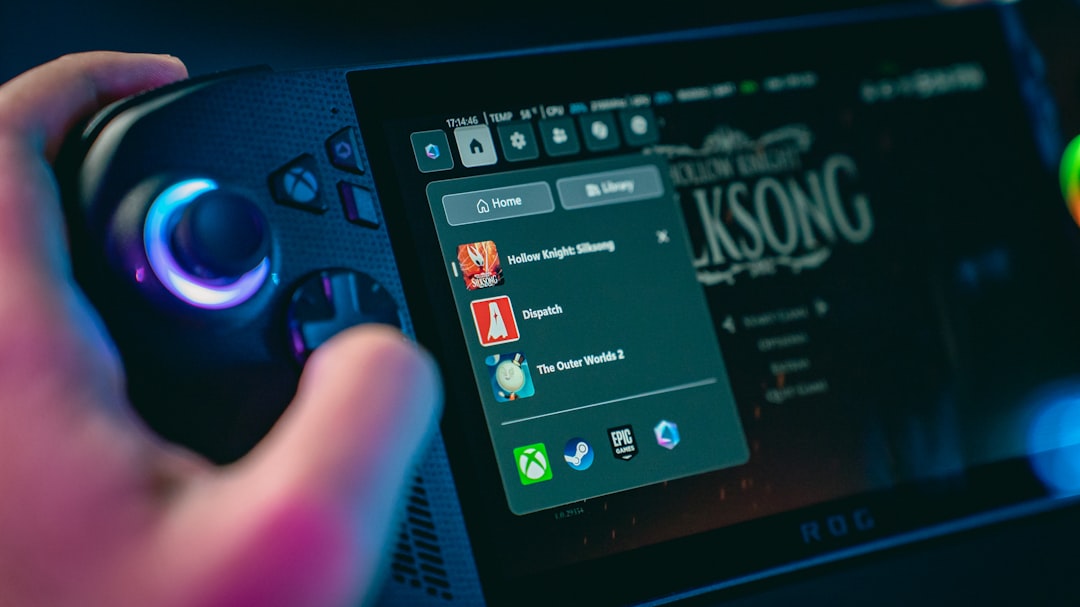
This integration allows you to:
- Launch emulated games from Gaming Mode
- Use Steam Overlay
- Track playtime
- Apply per-game controller profiles
Performance Optimization
While EmuDeck applies reasonable default settings, advanced users may wish to tune performance further.
Graphics Backend
- Use Vulkan where available for better performance.
- Enable asynchronous shaders to reduce stuttering.
Resolution Scaling
- 2x internal resolution works well for mid-range GPUs.
- Lower scaling if experiencing frame drops.
Shader Caching
Allow games to build shader caches gradually. Initial stutters often disappear after several minutes of gameplay.
Bazzite’s optimized kernel and Mesa drivers significantly reduce microstutter compared to many general-purpose Linux distributions.
Controller Configuration
EmuDeck preconfigures controller mappings for:
- Xbox controllers
- PlayStation controllers
- Steam Controller
- Generic XInput devices
If using Steam Input, you may override emulator mappings through Steam’s controller settings. This is particularly helpful for games requiring unconventional layouts.
Handling Updates
EmuDeck includes an update utility. Periodically launch the EmuDeck installer and select Update to:
- Update emulator cores
- Refresh configuration files
- Integrate compatibility patches
Because Bazzite uses rpm-ostree, system updates remain independent from emulator updates. This separation increases long-term system stability.
Common Issues and Troubleshooting
Game Not Launching
- Confirm BIOS placement.
- Verify ROM file integrity.
- Check correct file extension.
Poor Performance
- Lower internal resolution.
- Disable heavy shaders.
- Switch graphics backend.
Steam Shortcut Not Appearing
- Rerun Steam ROM Manager.
- Regenerate app list.
- Restart Steam completely.
Best Practices for Long-Term Stability
To maintain a clean setup:
- Keep ROM libraries organized.
- Backup your BIOS and save files.
- Avoid manual modification of emulator config files unless necessary.
- Store large libraries on a dedicated drive.
Additionally, consider periodic backups of the entire Emulation directory to prevent data loss.
Legal Considerations
Emulation software itself is legal in most jurisdictions. However:
- Downloading copyrighted ROMs without owning the original media is illegal in many countries.
- BIOS redistribution may violate copyright law.
- Switch and PS3 firmware extraction must be performed from owned hardware.
Always comply with applicable laws and obtain game backups responsibly.
Why EmuDeck on Bazzite Is a Strong Combination
The combination of Bazzite Linux and EmuDeck offers:
- Immutable system stability
- Gaming optimized kernel
- Seamless Steam integration
- Automatic emulator configuration
- Centralized ROM management
Bazzite provides a robust operating system optimized for gaming workloads, while EmuDeck eliminates much of the manual effort traditionally associated with emulator setup.
Conclusion
Installing EmuDeck on Bazzite Linux is a practical, efficient way to transform your system into a comprehensive retro gaming platform. Through automated configuration, thoughtful Steam integration, and stable OS foundations, the process minimizes complexity while maximizing performance.
By following structured installation steps, organizing ROMs correctly, using proper BIOS files, and maintaining regular updates, you can achieve a reliable emulation environment capable of handling multiple console generations. With careful attention to configuration and legality, your Bazzite system can serve as a professional-grade retro gaming workstation for years to come.