



Adobe Firefly gives beginners a practical way to create polished visuals with artificial intelligence, even when they have limited design experience. It is built around simple text prompts, quick variations, and commercially safe creative workflows, making it useful for social media graphics, product mockups, posters, logos, text effects, and branded content. For a beginner, the most important skill is not technical drawing ability; it is learning how to describe an idea clearly and refine the results with intention.
TLDR: Adobe Firefly helps beginners generate images, stylized text, and commercial design concepts using written prompts. A strong result usually comes from clear descriptions, specific style directions, and several rounds of refinement. Firefly is especially useful for marketers, creators, small businesses, and designers who need fast visual ideas. With careful prompt writing and responsible editing, it can support professional-looking work without replacing creative judgment.
What Adobe Firefly Is and Why Beginners Use It
Adobe Firefly is a generative AI tool designed to create visual content from text prompts and reference-based instructions. A beginner can type a description such as “modern coffee shop poster with warm lighting, minimal typography, natural colors”, and Firefly generates image options based on that instruction. Instead of starting from a blank canvas, the user begins with multiple creative directions that can be edited, regenerated, or taken into other Adobe applications.
One reason Firefly is beginner-friendly is its organized interface. Common features such as Text to Image, Generative Fill, and Text Effects are presented as separate tools. This makes it easier for a new user to focus on one task at a time rather than learning a complex design program all at once.
Firefly is also attractive for commercial design because Adobe has built it with business use in mind. While every project should still be reviewed for licensing, trademarks, and brand safety, Firefly is often considered a more reliable option for professional workflows than many casual AI image generators.


Getting Started with Text to Image
The Text to Image feature is usually the best starting point. It allows a beginner to describe an image in plain language and receive several generated results. The process is simple, but better prompts lead to better images.
A strong prompt usually includes:
- Subject: the main object, person, product, or scene.
- Style: realistic, watercolor, 3D, cinematic, editorial, minimal, or abstract.
- Mood: calm, energetic, luxurious, playful, futuristic, or professional.
- Composition: close up, wide angle, centered subject, flat lay, or portrait orientation.
- Color palette: earthy tones, pastel colors, monochrome, neon, or high contrast.
- Use case: website banner, social media ad, product background, poster, or packaging concept.
For example, a weak prompt might be “a shoe ad.” A stronger prompt would be “a premium running shoe on a clean studio background, dramatic side lighting, blue and silver color palette, high end sports advertisement style, space for headline text.” The second prompt gives Firefly more direction and produces results that are closer to a commercial design brief.
How Beginners Can Write Better Prompts
Prompt writing is the core skill of working with Firefly. A beginner should think like an art director giving instructions to a creative team. Instead of asking for something vague, the user should describe what the final design should communicate.
A useful prompt formula is:
Subject + setting + style + lighting + colors + purpose
For instance:
- “Organic skincare bottle on a stone surface, spa bathroom setting, soft natural lighting, beige and sage green palette, luxury wellness advertising style.”
- “Futuristic city skyline at sunset, cinematic science fiction style, glowing neon reflections, purple and orange colors, website hero image.”
- “Handmade bakery packaging concept, rustic illustration style, warm cream background, brown typography, friendly small business branding.”
Beginners should generate several versions instead of expecting the first result to be perfect. Firefly’s strength comes from iteration. The user can adjust wording, change the style, remove unwanted details, and regenerate until the image supports the project goal.
Using Generative Fill for Editing and Cleanup
Generative Fill allows the user to add, remove, or replace parts of an image. This is valuable when a generated image is close to perfect but contains one distracting element. A designer might remove an unwanted object from the background, extend the edges of a composition, or add a product prop that supports the message.
For example, if a social media graphic has a beautiful desk scene but lacks space for text, Generative Fill can extend the background on one side. If a product mockup needs flowers, books, or a cup of coffee added for atmosphere, the tool can insert those elements with a short instruction.
Beginners should keep edits specific. Instead of typing “make it better,” the user should write “remove the clutter from the left side and replace it with a clean cream background.” Clear editing prompts help Firefly make changes that are easier to control.
Creating AI Text Effects
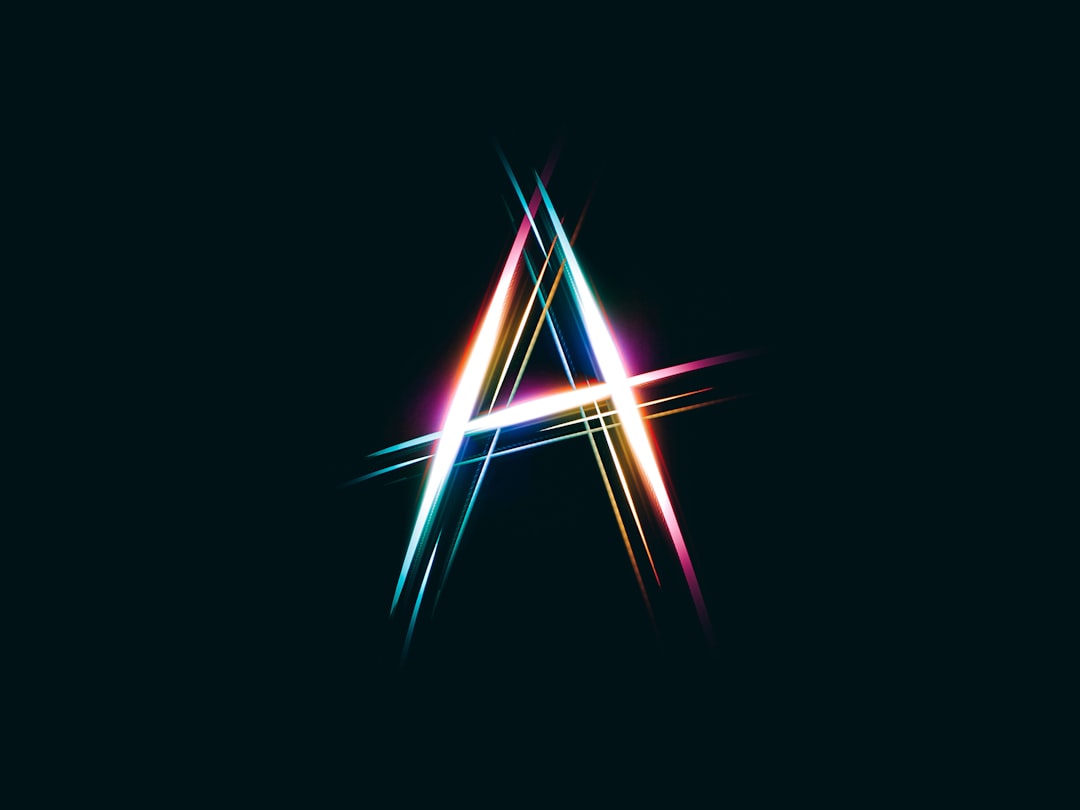
Adobe Firefly’s Text Effects feature is ideal for creating decorative lettering, title graphics, promotional headlines, and experimental typography. The user enters a word or phrase, then describes the material or visual style that should appear inside the letters.
Examples include:
- “gold foil texture with elegant reflections”
- “colorful candy sprinkles and glossy icing”
- “fresh green leaves and morning dew”
- “chrome metal with neon blue glow”
- “soft clouds with sunset colors”
This feature can help beginners produce striking headline visuals for posters, YouTube thumbnails, event promotions, and seasonal campaigns. However, the most professional results usually come from combining the effect with strong layout choices. The text should remain readable, the background should not compete with it, and the overall color palette should match the brand or campaign.

Designing Commercial Graphics with Firefly
Firefly can support commercial design workflows when it is used with strategy. A beginner should begin with a short creative brief before generating anything. The brief should define the audience, message, format, mood, and call to action. This prevents the AI from producing attractive but unsuitable visuals.
A simple commercial design brief might include:
- Business type: boutique fitness studio.
- Goal: promote a new beginner yoga class.
- Audience: adults interested in wellness and stress relief.
- Visual style: calm, clean, natural, welcoming.
- Format: Instagram square post and website banner.
- Key message: first class free for new members.
With this information, the user can prompt Firefly for a background image, create a soft text effect for the headline, and then assemble the final layout in a design application. Firefly supplies the visual assets, while the designer still controls hierarchy, spacing, typography, and brand consistency.
Best Practices for Professional Results
Although Firefly is simple to use, professional results require thoughtful decisions. Beginners can improve their work by following several best practices.
- Start with a clear purpose. Every image should serve a goal, such as selling a product, explaining a service, or building brand recognition.
- Use specific style language. Terms such as editorial photography, minimal vector illustration, or luxury product advertising guide the output more effectively than general adjectives.
- Maintain brand consistency. Colors, mood, and typography should match the business identity.
- Leave room for text. Commercial images often need space for headlines, logos, and calls to action.
- Check details carefully. AI images can contain odd hands, unreadable signs, strange reflections, or unrealistic product shapes.
- Edit instead of accepting the first result. The strongest designs usually come from refinement.
A beginner should also compare multiple outputs side by side. The best image is not always the most visually dramatic one; it is the one that communicates the message clearly and fits the intended platform.
Common Beginner Mistakes to Avoid
Many new users make the mistake of writing prompts that are too short. Firefly can interpret vague prompts in unpredictable ways, so the user should provide context. Another common mistake is overloading the prompt with conflicting ideas, such as asking for a design that is both minimal and highly detailed, or realistic and cartoonish at the same time.
Beginners also sometimes ignore composition. A beautiful AI image may still fail as an advertisement if there is no room for text or if the subject is placed awkwardly. Commercial design needs structure, not just visual appeal.
Another mistake is using AI results without review. The user should always check whether the image looks credible, ethical, and appropriate for the brand. If people, products, or cultural symbols appear in the image, extra care should be taken to avoid misleading or insensitive visuals.
Simple Workflow for a Beginner Project
A practical Firefly workflow might look like this:
- Define the project. The user decides the format, audience, message, and visual style.
- Generate image concepts. Firefly creates several image options using a detailed prompt.
- Select the strongest direction. The user chooses the image that best supports the campaign.
- Refine with Generative Fill. Unwanted objects are removed, backgrounds are extended, or supporting props are added.
- Create text effects if needed. A headline or title treatment is generated for extra impact.
- Build the final layout. The image, typography, logo, and call to action are arranged into a finished design.
- Review for quality. The final piece is checked for readability, brand consistency, and commercial suitability.


How Firefly Fits into a Creative Career
Firefly is not a replacement for design knowledge, but it can accelerate the early stages of the creative process. It helps users explore concepts quickly, test visual styles, and produce draft assets for campaigns. For beginners, it can also act as a learning tool because it encourages experimentation with composition, color, lighting, and mood.
A professional approach still requires human judgment. The designer decides whether the image supports the brand, whether the message is clear, and whether the design is ready for public use. Firefly can generate materials, but the person guiding the project provides the strategy and taste.
Conclusion
Adobe Firefly gives beginners a powerful entry point into AI-assisted design. By learning how to write detailed prompts, use Generative Fill, create text effects, and refine outputs for commercial use, a new user can produce visuals that look polished and purposeful. The key is to treat Firefly as a creative partner rather than a one-click solution. With clear direction, careful editing, and consistent brand thinking, beginners can generate images, text effects, and marketing designs that feel professional.
FAQ
Is Adobe Firefly good for beginners?
Yes. Adobe Firefly is beginner-friendly because it uses simple prompt-based tools and provides quick visual variations. A new user can start with text descriptions and improve results through refinement.
Can Adobe Firefly create commercial designs?
Adobe Firefly can be used to create assets for commercial design projects, depending on the specific license terms and project requirements. Users should still review all outputs for brand safety, accuracy, and legal concerns.
What is the best Firefly tool to start with?
Text to Image is often the best starting point because it teaches the basics of prompt writing. After that, beginners can explore Generative Fill and Text Effects.
How can a beginner get better results in Firefly?
A beginner should use detailed prompts that include subject, style, mood, lighting, colors, and purpose. Regenerating, comparing variations, and editing details also improves the final outcome.
Can Firefly make logos?
Firefly can help generate logo concepts, style inspiration, backgrounds, and graphic elements. However, final logo design should be checked carefully for originality, scalability, readability, and trademark issues.
Are AI-generated images always ready to publish?
No. AI-generated images should be reviewed and edited before publication. The user should check for visual errors, strange details, inaccurate text, and anything that may not fit the brand or audience.